
Reverse Email Lookup for Google Ads leads

Reverse Email Lookup for Google Ads leads

Clay

Automatically identify the person behind every Google Ads lead form email. FullEnrich's Reverse Email Lookup turns personal emails (Gmail, Yahoo…) into full B2B profiles - work email, phone, LinkedIn, company, and job title.

Automatically identify the person behind every Google Ads lead form email. FullEnrich's Reverse Email Lookup turns personal emails (Gmail, Yahoo…) into full B2B profiles - work email, phone, LinkedIn, company, and job title.

What this scenario does: When a new lead submits a Google Ads Lead Form Extension (instant webhook trigger), FullEnrich's Reverse Email Lookup identifies the person behind the personal email and returns their full B2B profile. This scenario has 2 modules - add a third to send the enriched data wherever you need.

Get template

What this scenario does: When a new lead submits a Google Ads Lead Form Extension (instant webhook trigger), FullEnrich's Reverse Email Lookup identifies the person behind the personal email and returns their full B2B profile. This scenario has 2 modules — add a third to send the enriched data wherever you need.

Why Reverse Email Lookup? Google Ads Lead Forms capture personal emails (Gmail, Yahoo…). The Reverse Email Lookup (POST /v1/contact/reverse/email/bulk) takes that email and returns the full Person & Company profile — work email, phone, LinkedIn, company, job title. 1 credit per successful match.

1. Module 1 - Google Ads Lead Forms: Watch Lead Forms (instant)

Create a new scenario. Add the first module: search for Google Ads Lead Forms and select Watch Lead Forms. Connect your Google Ads account and create a webhook. This is an instant trigger — it fires immediately when a new lead submits the form. The output includes the lead's email, first_name, last_name, etc.

2. Filter - Is personal email

Between Module 1 and Module 2, add a filter to only run the reverse lookup on personal emails (and skip work emails that don't need it). Click the connector line between the two modules and set:

  • Label: Is personal email

  • Condition: {{1.email}} Matches pattern @(gmail|yahoo|hotmail|outlook|icloud|live|msn|aol|protonmail|gmx)\.

This saves credits by only sending personal emails through the Reverse Email Lookup. Work emails (e.g. @company.com) will be skipped.

3. Module 2 - FullEnrich: Universal (Reverse Email Lookup)

Click + and add the FullEnrich → Universal module. Connect your FullEnrich account. Configure:

  • URL: /v1/contact/reverse/email/bulk

  • Method: POST

  • Headers: Key = Content-Type, Value = application/json

  • Body (JSON):

{
  "name": "Google Ads Reverse Lookup",
  "datas": [
    {
      "input": {
        "email": "{{1.email}}"
      }
    }
  ]
}
{
  "name": "Google Ads Reverse Lookup",
  "datas": [
    {
      "input": {
        "email": "{{1.email}}"
      }
    }
  ]
}
{
  "name": "Google Ads Reverse Lookup",
  "datas": [
    {
      "input": {
        "email": "{{1.email}}"
      }
    }
  ]
}

{{1.email}} maps the lead's personal email from the Google Ads trigger. The FullEnrich connection handles authentication automatically.

4. Module 3 - Send enriched data to your destination (optional)

The blueprint only contains the trigger + lookup. Add a third module to send the results where you need them — for example:

  • Google Sheets → Add a Row

  • HubSpot / Salesforce / Pipedrive → Create or Update Contact

  • Slack → Send a Message

Map the enrichment results from Module 2: most_probable_email, most_probable_phone, social_medias[].url, plus person & company profile fields.

5. Test and activate

Click Run once, then submit a test lead through your Google Ads Lead Form with a personal email (e.g. Gmail). Check that the filter passes and Module 2 returns the enriched B2B profile. Once confirmed, toggle the scenario ON. Since this is an instant trigger, it will fire immediately on every new lead.

Problem

Solution

FullEnrich returns no match

Not all personal emails can be resolved to a B2B profile. 1 credit is only charged when a match is found.

Module 2 returns an error

Make sure the Body JSON is valid. The structure is datas[].input.email (not data[].email). Check that the URL is /v1/contact/reverse/email/bulk.

Scenario doesn't trigger

Ensure the webhook is properly created in the Google Ads Lead Forms module. New leads must be submitted after the scenario is activated.

Missing email in trigger output

Make sure your Google Ads Lead Form includes an email field and that the lead actually submitted an email address.

n8n

What this workflow does: Google Ads sends each new lead form submission to an n8n webhook. The workflow filters personal emails (Gmail, Yahoo…), calls FullEnrich's Reverse Email Lookup API, and receives the enriched B2B profile (work email, phone, LinkedIn, company, job title) via a callback webhook. You can then connect your own CRM or destination after the callback.

1. Import the workflow

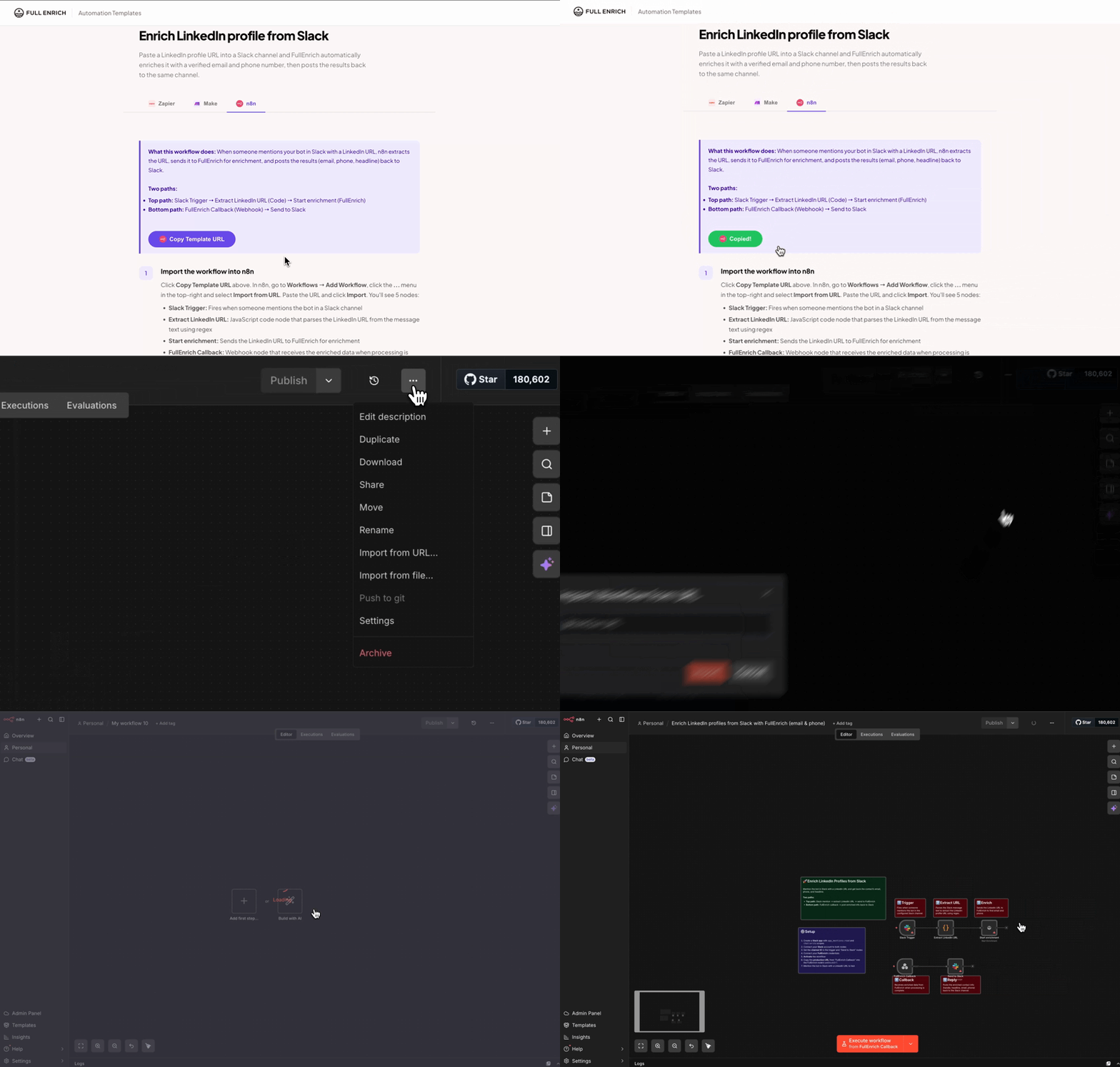
Click Copy Template URL above. In n8n, go to Workflows → Add Workflow → ⋯ (three-dot menu) → Import from URL and paste the URL. The workflow contains 4 nodes: Google Ads Lead webhook, Filter Personal Emails, FullEnrich Reverse Lookup, and FullEnrich Callback webhook.

2. Configure your FullEnrich API key

Click on the FullEnrich Reverse Lookup node. Under Authentication, create a new Header Auth credential:

  • Name: Authorization

  • Value: Bearer YOUR_API_KEY

You can find your API key in your FullEnrich dashboard under Settings → API.

3. Activate the workflow and copy the webhook URLs

Toggle the workflow to Active. Then:

  • Click the Google Ads Lead webhook node → copy the Production URL

  • Click the FullEnrich Callback webhook node → copy the Production URL

Paste the FullEnrich Callback production URL into the FullEnrich Reverse Lookup node's JSON body, replacing YOUR_PRODUCTION_CALLBACK_WEBHOOK_URL.

4. Set up the webhook in Google Ads

In your Google Ads account:

  • Go to Assets → Lead Form Extensions

  • Edit the lead form you want to connect

  • Scroll to Lead delivery and select Webhook

  • Paste the Google Ads Lead production URL from Step 3

  • Set the Key to your Google Ads webhook key (or any value — used to verify the source)

  • Click Send test data to verify the connection

From now on, every new lead form submission will be sent directly to your n8n workflow.

5. Connect your CRM or destination after the callback

The FullEnrich Callback node receives the enriched B2B profile. Connect any node after it to store or use the data:

  • Google Sheets → Append Row

  • HubSpot → Create or Update Contact

  • Salesforce → Create Lead

  • Pipedrive → Create Person

  • Slack → Send a notification

  • Any CRM or tool available in n8n

Map the enrichment fields: most_probable_email, most_probable_phone, social_medias[].url, plus person & company profile fields.

6. Test and go live

Submit a test lead through your Google Ads Lead Form using a personal email (e.g. Gmail). Check that:

  • The Google Ads Lead webhook receives the data

  • The Filter passes (personal email detected)

  • The FullEnrich Reverse Lookup returns a success response

  • The FullEnrich Callback receives the enriched profile

Remove the test pin data from the Google Ads Lead node before going live.

Problem

Solution

Google Ads "Send test data" fails

Make sure the workflow is Active and you're using the production URL (not the test URL).

Callback webhook never receives data

Check that you replaced YOUR_PRODUCTION_CALLBACK_WEBHOOK_URL in the FullEnrich Reverse Lookup node with the actual production URL from the FullEnrich Callback node.

401 error on FullEnrich API

Check that your Header Auth credential has Authorization as the name and Bearer YOUR_API_KEY as the value (with the space after Bearer).

No match found for email

Not all personal emails can be resolved to a B2B profile. 1 credit is only used when a match is found.

Filter skips all emails

The filter only passes personal emails (Gmail, Yahoo, Hotmail, etc.). Work emails are skipped because they already reveal the company.