

Enrich new Google Sheets rows with FullEnrich

Enrich new Google Sheets rows with FullEnrich

Clay

Automatically enrich every new row in Google Sheets with verified emails and phone numbers using FullEnrich, then write the enriched data back to the same row.

Automatically enrich every new row in Google Sheets with verified emails and phone numbers using FullEnrich, then write the enriched data back to the same row.

Zapier

What this Zap does: Every new row in your Google Sheet (with First Name, Last Name, Company Name, and optionally Company Domain and LinkedIn URL) triggers FullEnrich to find a verified email and phone number, which Zapier then writes back to the Email and Phone columns of the same row.

Use this Zap

1. Prepare your Google Sheet

Create a new Google Sheet with these columns in the first row (headers):

  • A - First Name

  • B - Last Name

  • C - Company Name

  • D - Company Domain (optional, improves match rate)

  • E - LinkedIn URL (optional, improves match rate)

  • F - Email (will be filled by FullEnrich)

  • G - Phone (will be filled by FullEnrich)

Add at least one row of data (First Name, Last Name, Company Name) so you can test the Zap later.

2. Open the Zap template

Click the Use this Zap button above to open the pre-built Zap. It contains two steps already configured:

  • Step 1 (Trigger): New Row Added to Google Sheets – fires every time a new row is added to your sheet

  • Step 2 (Action): Enrich Contact with FullEnrich – sends the contact data to FullEnrich for enrichment

3. Connect your Google Sheets account

In Step 1 of the Zap, click Sign In to Google Sheets and connect your Google account. Then configure:

  • Spreadsheet → select the Google Sheet you created in Step 1

  • Worksheet → select the sheet (e.g. Sheet1)

Click Test trigger – Zapier will pull a recent row from your spreadsheet. Make sure you see the First Name, Last Name, Company Name, and other fields from your test row.

4. Connect your FullEnrich account

In Step 2 of the Zap, click Sign In to FullEnrich and enter your FullEnrich API key. Then map the contact fields from the Google Sheet trigger:

  • First Name → First Name column (A)

  • Last Name → Last Name column (B)

  • Company Name → Company Name column (C)

  • Company Domain → Company Domain column (D)

  • LinkedIn URL → LinkedIn URL column (E)

5. Test the Zap

Click Test step on the FullEnrich action. FullEnrich will enrich the contact from your test row. You should see fields like Most Probable Email and Most Probable Phone in the output. Verify the enrichment returned the expected data.

6. Publish your Zap

Once the test is successful, click Publish. Your Zap is now live — every new row added to your Google Sheet will automatically trigger FullEnrich to enrich the contact with a verified email and phone number.

Tip: Domain and LinkedIn URL are optional but significantly improve match rates. If you have them, make sure they're in columns D and E.

Problem

Solution

FullEnrich returns no email

Make sure First Name, Last Name, and Company Name are mapped correctly. Adding the company domain or LinkedIn URL improves match rates.

Google Sheets update fails

Check that the row number is correctly mapped from Step 1, and that your Google account has edit permissions on the spreadsheet.

Zap doesn't trigger

Ensure the trigger is set to New Spreadsheet Row (not Updated Row) and that you're adding rows to the correct sheet.

Make

What this scenario does: When Make detects a new row in your Google Sheet (with First Name, Last Name, Company Name, and optionally Company Domain and LinkedIn URL), it sends the contact to FullEnrich for enrichment and updates the Email and Phone columns of that same row with the verified data.

Get template

1. Prepare your Google Sheet

Create a new Google Sheet with these columns in the first row (headers):

  • A - First Name

  • B - Last Name

  • C - Company Name

  • D - Company Domain (optional, improves match rate)

  • E - LinkedIn URL (optional, improves match rate)

  • F - Email (will be filled by FullEnrich)

  • G - Phone (will be filled by FullEnrich)

Add at least one row of data (First Name, Last Name, Company Name) so you can test the scenario later.

2. Open the Make template

Click the Get Template button above to open the scenario in Make. The template contains 3 pre-configured modules:

  • Google Sheets - Watch Rows (polling trigger)

  • FullEnrich - Enrich a Contact

  • Google Sheets - Update a Row

3. Set up the Google Sheets trigger - Watch Rows

The first module is Google Sheets → Watch Rows. Connect your Google account, then configure:

  • Drive → My Drive

  • Spreadsheet → select your spreadsheet

  • Sheet Name → select the sheet (e.g. Sheet1)

  • Table contains headers → Yes

  • Row with headersA1:Z1

  • Limit1 (processes one row at a time)

4. Configure FullEnrich - Enrich a Contact

The second module is FullEnrich → Enrich a Contact. Connect your FullEnrich API key, then map the fields from the Google Sheets trigger:

  • First NameFirst Name (A)

  • Last NameLast Name (B)

  • Company NameCompany Name (C)

  • DomainCompany Domain (D)

  • LinkedIn URLLinkedIn URL (E)

  • Enrich with → select both contact.emails and contact.phones

5. Configure Google Sheets - Update a Row

The third module is Google Sheets → Update a Row. Connect the same Google account and configure:

  • Drive → My Drive

  • Spreadsheet → same spreadsheet as Step 3

  • Sheet Name → same sheet

  • Row numberRow number from the Watch Rows module (Step 3)

  • Table contains headers → Yes

  • Value input option → User entered

In the Values in columns section, map only the output columns:

  • Email (F)datas[].contact.most_probable_email from FullEnrich

  • Phone (G)datas[].contact.most_probable_phone from FullEnrich

Leave all other columns empty - they won't be overwritten.

6. Test the scenario

Click Run once. After the run, check:

  • The FullEnrich module output shows most_probable_email and most_probable_phone

  • The Google Sheets Update module wrote the email and phone back to columns F and G

7. Activate the scenario

Toggle the scenario ON and set the schedule (e.g. every 15 minutes). Every new row added to your Google Sheet will now be automatically enriched with a verified email and phone number.

Tip: Domain and LinkedIn URL are optional but significantly improve match rates. If you have them, make sure they're in columns D and E.
Problem

Solution

FullEnrich returns no email

Make sure First Name, Last Name, and Company Name are filled in. Adding the company domain or LinkedIn URL significantly improves match rates.

Email/Phone written to wrong column

Check that your sheet headers match the expected layout: First Name (A), Last Name (B), Company Name (C), Company Domain (D), LinkedIn URL (E), Email (F), Phone (G).

Update a Row fails

Verify that Row number is mapped from the Watch Rows module (not hardcoded), and that your Google account has edit permissions.

Scenario doesn't trigger

Make sure the module is set to Watch Rows, the scenario is toggled ON, and new rows are being added after activation.

n8n

What this workflow does: When a new row is added to your Google Sheet, FullEnrich finds their verified email and phone number, then writes the results back to the same row. This workflow uses two flows because FullEnrich works asynchronously - it sends results to a webhook when the enrichment is ready.

1. Import the workflow

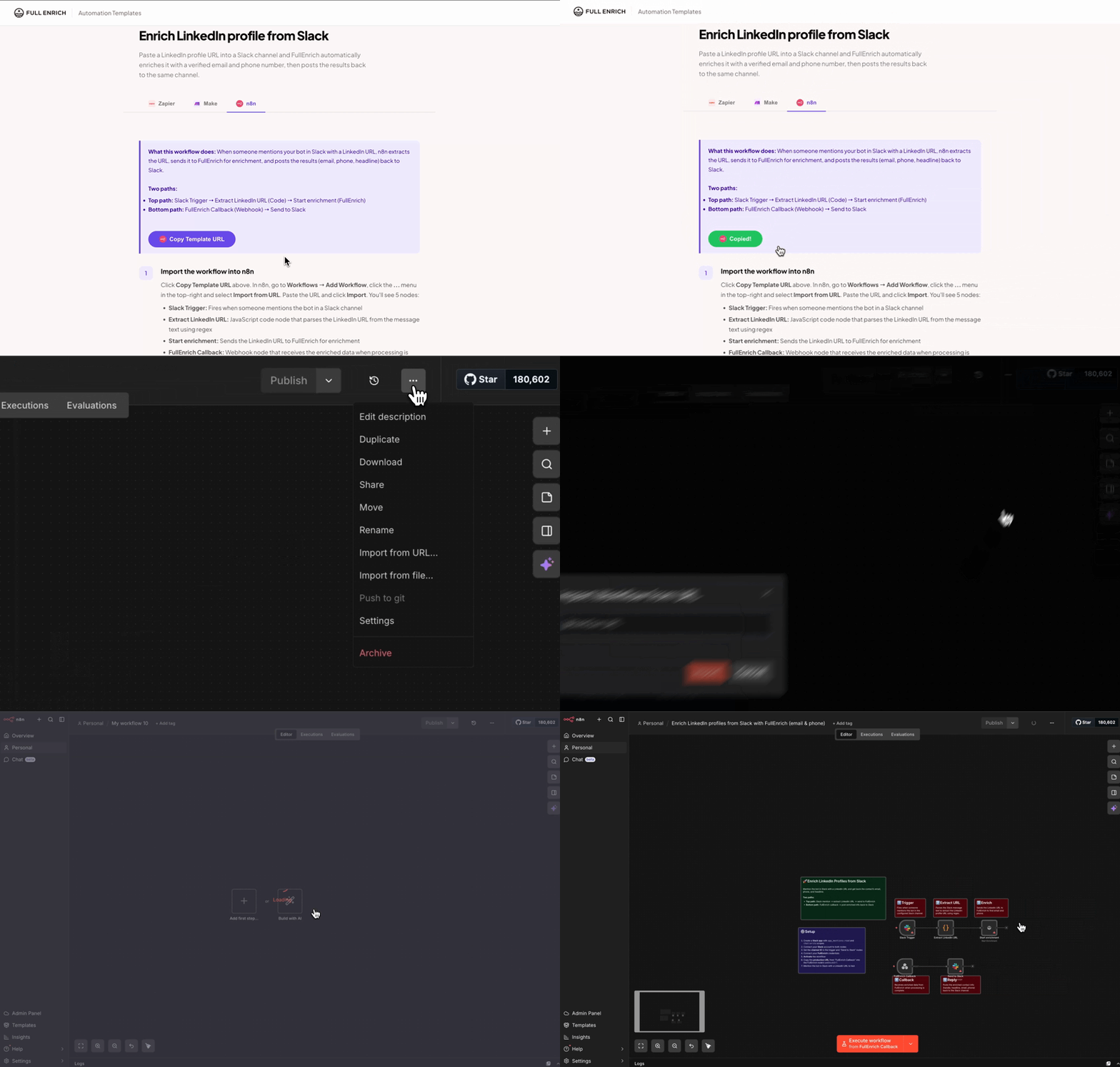
Click Copy Template URL above. In n8n, go to Workflows → Add Workflow, click the ... menu in the top-right and select Import from URL. Paste the URL and click Import. You'll see 4 nodes arranged in two flows:

  • Top flow: Google Sheets Trigger → Start enrichment (FullEnrich)

  • Bottom flow: Webhook → Google Sheets - Write Back

2. Prepare your Google Sheet

Create a Google Sheet with these columns in the first row (headers):

  • A - First Name

  • B - Last Name

  • C - Company Name

  • D - Company Domain (optional, improves match rate)

  • E - LinkedIn URL (optional, improves match rate)

  • F - Email (will be filled by FullEnrich)

  • G - Phone (will be filled by FullEnrich)

Add at least one row of data so you can test later.

3. Connect the Google Sheets Trigger

Open the Google Sheets Trigger node. Connect your Google account, then configure:

  • Document → select your spreadsheet

  • Sheet → select the sheet (e.g. Sheet1)

  • Trigger on → Row Added

  • Poll Times → Every Hour (or more frequent if needed)

This node watches for new rows and sends the data to FullEnrich.

4. Configure FullEnrich - Start enrichment

Open the Start enrichment (FullEnrich) node. Connect your FullEnrich API key. The fields are already pre-mapped from the template:

  • Enrichment Name → Googlesheet

  • First Name → {{ $json["First Name"] }}

  • Last Name → {{ $json["Last Name"] }}

  • Company Name → {{ $json["Company Name"] }}

  • Company Domain → {{ $json["Company Domain"] }}

  • LinkedIn URL → {{ $json["LinkedIn URL"] }}

  • Webhook URL → the Webhook node's URL (see Step 5)

5. Set up the Webhook node

Open the Webhook node. It's already configured with HTTP method POST. Copy the production URL shown at the top of the node (the one without webhook-test in it) and paste it in the FullEnrich node's Webhook URL field from Step 4.

Important: Always use the production URL (without webhook-test). The test URL only works during manual testing and will stop working once you activate the workflow.

6. Configure Google Sheets - Write Back

Open the Google Sheets - Write Back node. Connect the same Google account and select the same spreadsheet and sheet. This node uses the Update Row operation and matches rows by Last Name to find the correct row to update. The fields are pre-mapped:

  • Email → {{ $json.body.datas[0].contact.most_probable_email }}

  • Phone → {{ $json.body.datas[0].contact.most_probable_phone }}

  • Last Name → {{ $json.body.datas[0].contact.lastname }} (used for matching)

How does the write-back find the right row? When FullEnrich sends results to the webhook, the response includes the contact's last name. The Google Sheets node matches on the Last Name column to find and update the correct row. This means each last name in your sheet should be unique — if you have duplicates, consider adding another matching column.

7. Test the workflow

Click Test workflow in n8n, then add a new row to your Google Sheet. The top flow will detect the new row and send the enrichment request to FullEnrich. After a few seconds, FullEnrich sends results to the webhook, and the bottom flow writes the email and phone back to your sheet. Check your Google Sheet to confirm columns F and G are filled in.

8. Activate the workflow

Toggle the workflow to Active. The Google Sheets Trigger will poll for new rows on the schedule you set (default: every hour). Make sure the FullEnrich node uses the production webhook URL.

Tip: Domain and LinkedIn URL are optional but significantly improve match rates. If you have them, make sure they're in columns D and E of your sheet.

Problem

Solution

Webhook never receives data

Make sure you're using the production webhook URL (without webhook-test). Also make sure the workflow is toggled Active.

Wrong row gets updated

The write-back matches on Last Name. If you have duplicate last names, the wrong row may be updated. Make sure last names are unique, or add another matching column.

FullEnrich returns no email

Make sure First Name, Last Name, and Company Name are filled in. Adding domain or LinkedIn URL significantly improves match rates.

Google Sheets update fails

Verify that the Google Sheets Write Back node is connected to the same Google account and pointing to the same spreadsheet/sheet as the trigger.

Trigger doesn't detect new rows

Check the Poll Times setting in the Google Sheets Trigger. Default is every hour. You can increase the frequency if needed.