
Zapier
What this Zap does: When someone posts a LinkedIn profile URL in a Slack channel, the Zap detects it, sends it to FullEnrich for enrichment, and posts the verified email and phone number back to the same channel. The Zap uses 4 steps: Slack New Message → Filter (LinkedIn URL) → FullEnrich Enrich Contact → Slack Send Message.

Use this Zap
1. Prepare your Slack channel
Choose (or create) a dedicated Slack channel where your team will paste LinkedIn profile URLs for enrichment — for example, #lead-enrichment. Any message containing a LinkedIn URL posted in this channel will trigger the Zap.
2. Open the Zap template
Click the Use this Zap button above to open the template in Zapier. The Zap contains 4 pre-configured steps:
Trigger: Slack - New Message Posted to Channel (instant)
Filter: Only continue if the message contains a LinkedIn URL
Action 1: FullEnrich - Enrich Contact
Action 2: Slack - Send Channel Message
3. Configure the Slack trigger
Click on the first step (New Message Posted to Channel). Connect your Slack account, then select the Channel you want to monitor. This is an instant trigger — the Zap fires immediately when a new message is posted, with no polling delay.
4. Configure the Filter
Click on the second step (Filter). It's pre-configured to only continue if the message text contains a LinkedIn profile URL (e.g. linkedin.com/in/). This prevents the Zap from running on every message in the channel.
5. Connect your FullEnrich account
Click on the third step (Enrich Contact). Connect your FullEnrich account using your API key. Map the following fields:
Name of Your Enrichment → e.g.
Slack LinkedInLinkedIn Profile URL → Message Text from Slack (the LinkedIn URL)
Enrich with → Emails + Phones
Since the input is a LinkedIn URL, you don't need to map First Name, Last Name, or Company Name — FullEnrich resolves them from the profile.
6. Configure the Slack reply
Click on the fourth step (Send Channel Message). Select the same Channel as the trigger. Compose the message with the enriched data, for example:
Name →
First Name+Last Namefrom FullEnrichEmail →
Most Probable Emailfrom FullEnrichPhone →
Most Probable Phonefrom FullEnrich
7. Test and turn on
Click Test step on each step to verify everything works — paste a LinkedIn profile URL in the Slack channel first. Check that the enriched data is posted back to the channel. Once confirmed, click Publish to turn the Zap on.
Note: This trigger is instant — the Zap fires immediately when a message is posted. The Filter step ensures only messages containing LinkedIn URLs are processed, so normal channel conversations are ignored.
Problem | Solution |
|---|---|
FullEnrich returns no email | Make sure the LinkedIn URL is a valid profile URL (e.g. |
Zap fires on every message | Check that the Filter step is correctly configured to only continue when the message contains |
Slack reply not appearing | Make sure the Send Message step is connected to the correct channel and that the Zapier bot has permission to post in it. |
Zap doesn't fire | Make sure the Zap is published and that the Zapier Slack app is installed in your workspace with access to the selected channel. |
Make
What this scenario does: When a new message containing a LinkedIn URL is posted in your Slack channel, FullEnrich enriches the profile with a verified email and phone number, then sends the results back to Slack.
3 modules: Slack Watch Events → FullEnrich Enrich (with LinkedIn URL filter) → Slack Send Message

Get template
1. Import the template into Make
Click Get Template above to download the blueprint JSON. In Make, go to Scenarios → Create a new scenario, click the ... menu at the bottom and select Import Blueprint. Upload the JSON file. You'll see 3 modules:
Module 1: Slack - Watch New Events (listens for new messages in a channel)
Module 2: FullEnrich - Enrich (enriches the LinkedIn URL with email and phone) — has a filter: only runs if the message contains
linkedin.com/in/Module 3: Slack - Create a Message (posts the enriched email and phone back to the channel)
2. Set up your Slack app
You need a Slack app with an Events webhook. In Make:
Open Module 1 (Watch New Events) and create or select a Slack webhook
Make will give you a webhook URL — copy it
In your Slack App settings (api.slack.com), go to Event Subscriptions, enable events, and paste the Make webhook URL
Subscribe to the
message.channelsevent (or the appropriate message event for your channel type)
3. Connect your accounts
Open each module and connect the required accounts:
Module 2 (FullEnrich Enrich): Connect your FullEnrich API key. The template is pre-configured to enrich with both emails and phone numbers using the LinkedIn URL from the Slack message.
Module 3 (Slack Create Message): Connect your Slack account and select the channel where you want the enrichment results posted.
4. Test the scenario
Click Run once, then paste a LinkedIn profile URL into your Slack channel, e.g.: https://linkedin.com/in/johndoe. The scenario will detect the LinkedIn URL, enrich the profile via FullEnrich, and post the email and phone number back to the channel.
5. Activate the scenario
Toggle the scenario ON. Since it uses a webhook trigger (instant), it will fire immediately whenever a new message with a LinkedIn URL is posted — no polling needed.
Tip: The filter between Module 1 and Module 2 checks if the message text contains
linkedin.com/in/. This means regular messages are ignored — only LinkedIn profile URLs trigger the enrichment. You can customize the response format in Module 3 to include additional fields from the FullEnrich response.
Problem | Solution |
|---|---|
Scenario doesn't trigger | Make sure the Slack app's Event Subscriptions are enabled and the webhook URL matches the one in Module 1. The scenario must be toggled ON. |
FullEnrich returns no data | The LinkedIn URL may be invalid or the profile may not have enough public data. Check that the URL contains |
Message not posted back to Slack | Verify Module 3 is connected to the correct Slack workspace and channel. Make sure the Slack app has permission to post messages. |
All messages trigger the scenario | Check the filter between Module 1 and 2 - it should only pass messages containing |

n8n
What this workflow does: When someone mentions your bot in Slack with a LinkedIn URL, n8n extracts the URL, sends it to FullEnrich for enrichment, and posts the results (email, phone, headline) back to Slack.
Two paths:
Top path: Slack Trigger → Extract LinkedIn URL (Code) → Start enrichment (FullEnrich)
Bottom path: FullEnrich Callback (Webhook) → Send to Slack

1. Import the workflow
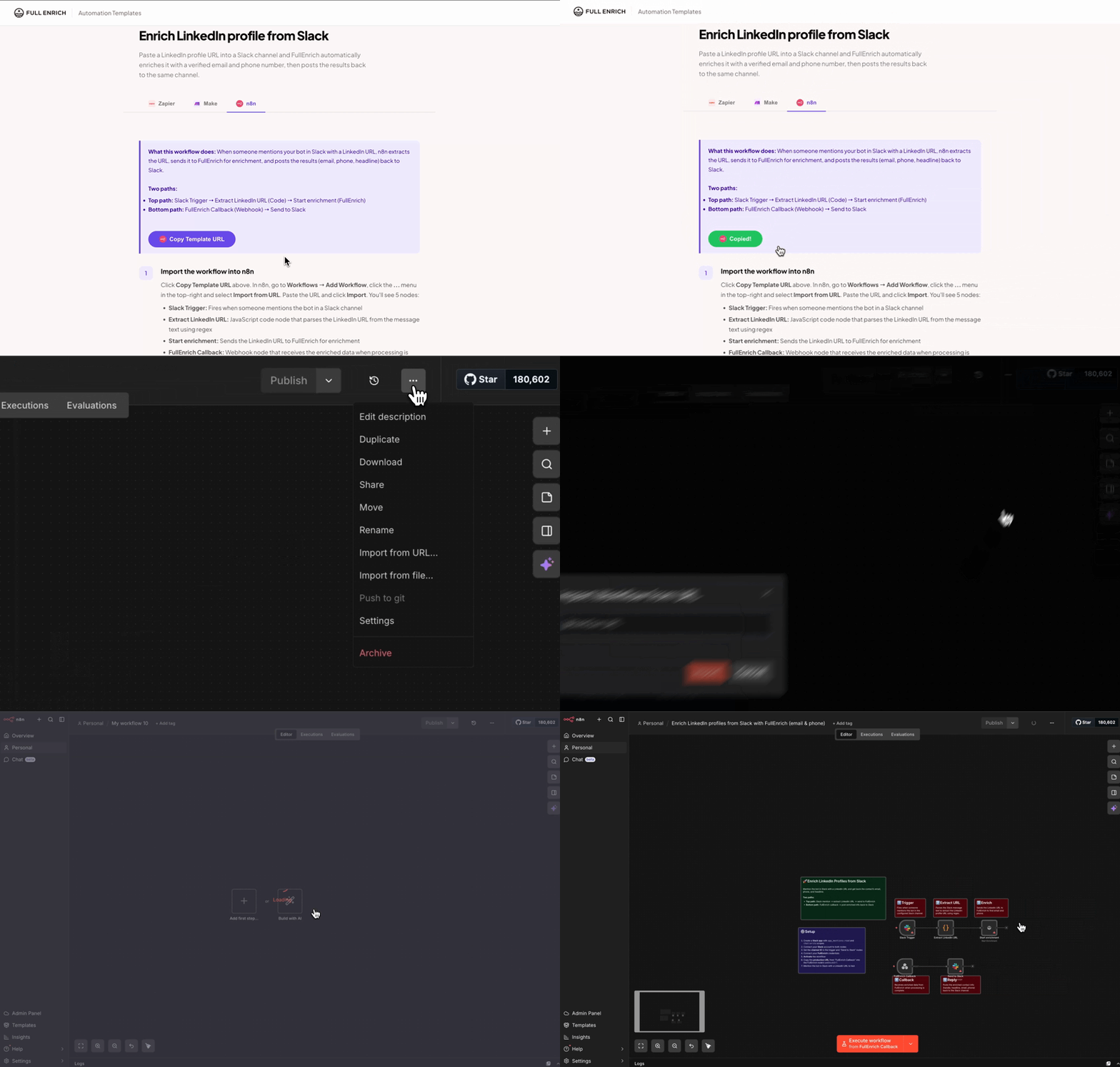
Click Copy Template URL above. In n8n, go to Workflows → Add Workflow, click the ... menu in the top-right and select Import from URL. Paste the URL and click Import. You'll see 5 nodes:

Slack Trigger — fires when someone mentions the bot in a Slack channel
Extract LinkedIn URL — JavaScript code node that parses the LinkedIn URL from the message text using regex
Start enrichment — sends the LinkedIn URL to FullEnrich for enrichment
FullEnrich Callback — webhook node that receives the enriched data when processing is complete
Send to Slack — posts the enriched contact info (handle, headline, email, phone) back to the channel
2. Create a Slack app
Go to api.slack.com/apps and click Create New App → From an app manifest. Select your workspace, then paste this manifest:(YAML or JSON):
Important: Replace
YOUR_N8N_WEBHOOK_URLwith your n8n Slack Trigger webhook URL (you'll get it after activating the workflow in Step 5).
3. Install the app & add the token to n8n
In your Slack app settings, go to Install App and click Install to Workspace. Authorize the app — this generates a Bot User OAuth Token (starts with xoxb-). In n8n, open the Slack Trigger node and the Send to Slack node. Create a new Slack credential and paste the Bot Token. Select the channel you want the bot to listen on.
4. Invite the bot to your channel
In Slack, go to the channel you want to use and type:
The bot must be in the channel to receive app_mention events.
5. Connect FullEnrich & configure the callback
Open the Start enrichment node and connect your FullEnrich API credentials
Activate the workflow (toggle ON in the top-right)
Copy the production URL from the FullEnrich Callback webhook node
Paste it into the Start enrichment node's
webhookUrlfield — this is where FullEnrich will send the enriched data back
6. Update the Slack app Event Subscription URL
Now that the workflow is active, copy the Slack Trigger webhook URL from n8n. Go back to your Slack app settings → Event Subscriptions and paste it in the Request URL field. Slack will verify the URL — once verified, click Save Changes.
7. Test the workflow
In your Slack channel, mention the bot with a LinkedIn URL:
The workflow will extract the URL, enrich the profile via FullEnrich, and post the email, phone, headline, and LinkedIn handle back to the channel.
Note: The workflow uses two separate paths. The top path handles the Slack mention and sends the LinkedIn URL to FullEnrich. The bottom path receives the enrichment results via webhook and posts them to Slack. Both paths must be active for the workflow to work end-to-end.
Problem | Solution |
|---|---|
Bot doesn't respond to mentions | Make sure the bot is invited to the channel ( |
FullEnrich returns no data | Check that the LinkedIn URL is valid and contains |
Enrichment works but no Slack message | Verify the FullEnrich Callback production URL is correctly pasted in the Start enrichment node's webhookUrl. Check that the Send to Slack node has the correct channel selected. |
Event Subscription URL not verified | The workflow must be activated before Slack can verify the URL. Activate the workflow first, then paste the webhook URL in Event Subscriptions. |