
Zapier
What this Zap does: When a new item is created in your Notion database, FullEnrich finds the contact's verified email and phone number, then updates the same Notion page with the enriched data. The Zap uses 3 steps: Notion New Data Source Item → FullEnrich Enrich Contact → Notion Update Data Source Item.

Use this Zap
1. Prepare your Notion database
Make sure your Notion database has the following properties:
First Name
Last Name
Company Name
Company Domain (optional, improves match rates)
LinkedIn URL (optional)
Email (will be filled by FullEnrich)
Phone (will be filled by FullEnrich)
2. Open the Zap template
Click the Use this Zap button above to open the template in Zapier. The Zap contains 3 pre-configured steps:
Trigger: Notion - New Data Source Item (instant)
Action 1: FullEnrich - Enrich Contact
Action 2: Notion - Update Data Source Item
3. Configure the Notion trigger
Click on the first step (New Data Source Item). Connect your Notion account, then select the Data Source (your Notion database). This is an instant trigger — the Zap fires immediately when a new item is created in your database, with no polling delay.
4. Connect your FullEnrich account
Click on the second step (Enrich Contact). Connect your FullEnrich account using your API key. Map the following fields from the Notion trigger:
Name of Your Enrichment → e.g.
NotionFirst Name →
First Namefrom NotionLast Name →
Last Namefrom NotionCompany Name →
Company Namefrom NotionDomain of the company →
Company Domainfrom NotionEnrich with → Emails + Phones
5. Configure the Update Data Source Item step
Click on the third step (Update Data Source Item). Select the same Data Source as the trigger. Map the following fields:
Item ID →
IDfrom the Notion trigger stepEmail →
Most Probable Emailfrom FullEnrichPhone →
Most Probable Phonefrom FullEnrich
6. Test and turn on
Click Test step on each step to verify everything works — make sure at least one entry exists in your Notion database. Check that the Email and Phone properties get updated correctly. Once confirmed, click Publish to turn the Zap on. Every new database entry will now be automatically enriched.
Note: This trigger is instant — unlike polling-based triggers, the Zap fires immediately when a new item is added to your Notion database. No delay.
Problem | Solution |
|---|---|
FullEnrich returns no email | Make sure First Name, Last Name, and Company Name are mapped correctly. Adding the Company Domain improves match rates. |
Notion update fails | Check that the Item ID is mapped from the trigger step, and that the Email and Phone properties exist in your database. |
Zap doesn't fire | Make sure the Zap is published and that Notion has granted access to the correct database. Re-authorize the connection if needed. |
Duplicate enrichments | Zapier tracks which items it has already processed. If you see duplicates, check that you don't have multiple Zaps running on the same database. |
Make
What this scenario does: When a new page is added to your Notion database, the scenario instantly enriches the contact with FullEnrich and updates the same page with the verified email and phone number.
3 modules: Watch Events (instant) → FullEnrich Enrich → Update a Database Item

Get template
1. Watch Events (instant trigger)
Go to make.com and click Create a new scenario. Add the first module: search for Notion and select Watch Events. Connect your Notion account. This is an instant webhook-based trigger — the scenario runs immediately when a new page is created in your database, with no polling delay.
2. FullEnrich - Enrich
Add a second module: FullEnrich → Enrich. Connect your FullEnrich API key. Map the fields from the Notion page properties:
First Name →
{{1.properties.FirstName.title[].plain_text}}Last Name →
{{1.properties.LastName.rich_text[].plain_text}}Company Name →
{{1.properties.CompanyName.rich_text[].plain_text}}Domain →
{{1.properties.CompanyDomain.rich_text[].plain_text}}
Under Enrich with, select Emails and Phones.
3. Update a Database Item
Add a third module: Notion → Update a Database Item. Select your database (by Data Source ID). The Page ID is automatically passed from the trigger. Map the enriched data to your Notion properties:
Email → Most Probable Email (from FullEnrich)
Phone → Most Probable Phone (from FullEnrich)
4. Test and activate
Click Run once to test, then create a new page in your Notion database. Check that the Email and Phone properties have been filled in. Once confirmed, toggle the scenario ON. Since the trigger is instant (webhook), new entries will be enriched in real time.
Notion database setup: Make sure your Notion database has properties named First Name (title), Last Name (text), Company Name (text), Company Domain (text), Email (text or email), and Phone (text or phone). The property names in the mappings above must match your actual Notion property names.
Problem | Solution |
|---|---|
FullEnrich returns no email | Make sure First Name, Last Name, and Company Name are mapped correctly from the Notion properties. Adding the Company Domain improves match rates. |
Notion update fails | Check that the Data Source ID is correct and that Email and Phone properties exist in your Notion database with the right type (text, email, or phone). |
Scenario doesn't trigger | Make sure the Notion webhook is active. Go to the Watch Events module and verify the webhook is properly connected. Try re-creating it if needed. |
Property names don't match | The field mappings use your Notion property names (e.g. |

n8n
What this workflow does: When a page is updated in your Notion database, the workflow sends the contact details to FullEnrich for enrichment, then updates the same Notion page with verified email and phone. Uses two parallel flows because FullEnrich works asynchronously.
Top flow (2 nodes): Notion Trigger (polling) → Start enrichment (FullEnrich)
Bottom flow (2 nodes): Webhook (callback) → Update Notion Page

Notion database setup: Your database needs these properties: First Name (title), Last name (text), Company (text), Domain (text), Email (email type), Phone (phone type).
1. Import the workflow
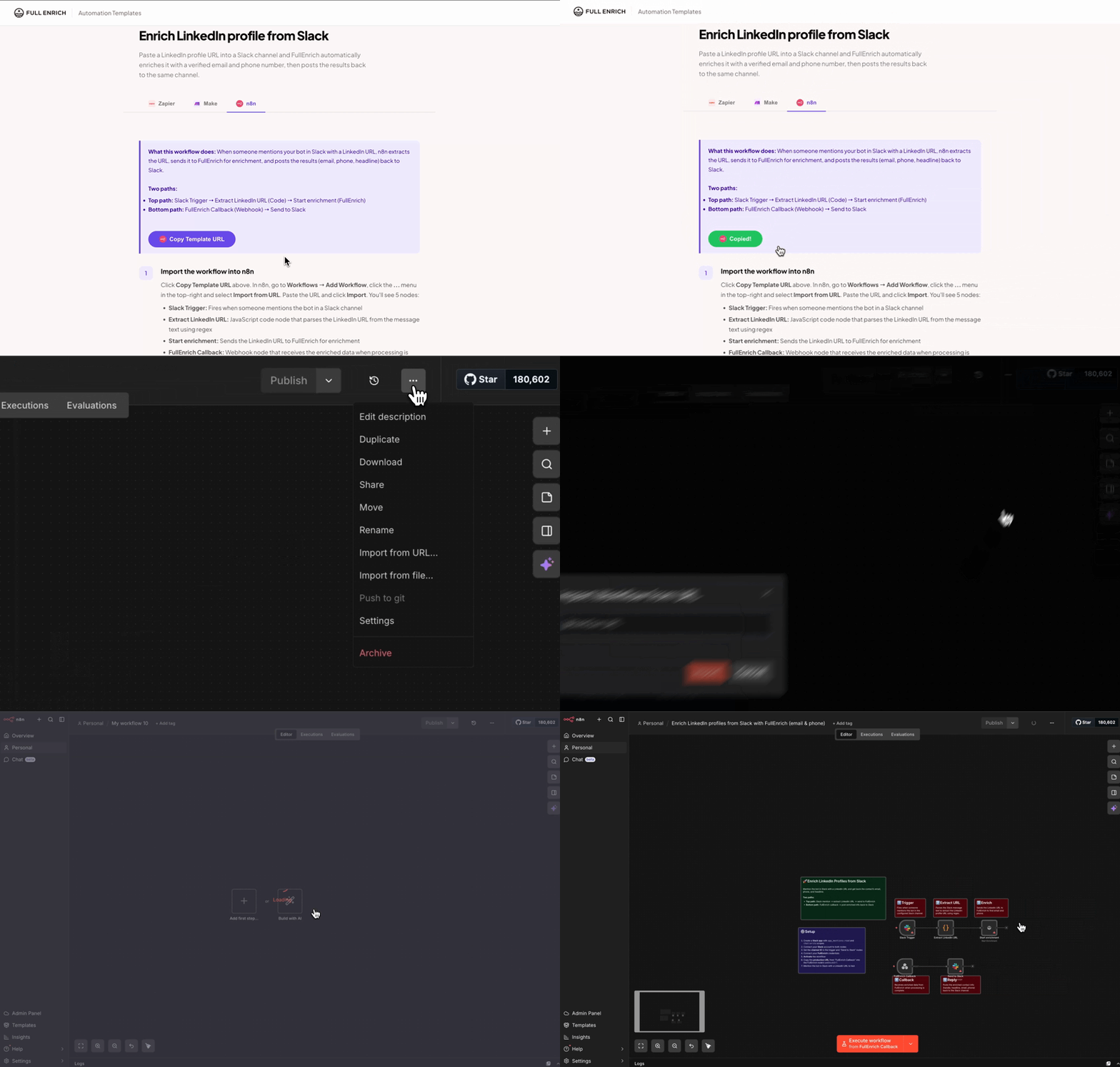
Click Copy Template URL above. In n8n, go to Workflows → Add Workflow, click the ... menu in the top-right and select Import from URL. Paste the URL and click Import.

2. Notion Trigger (polling)
Open the Notion Trigger node. Set the event to Page Updated in Database. Connect your Notion account and select the database that contains your contacts. The trigger polls every minute for updated pages.
3. Start enrichment (FullEnrich)
Add a FullEnrich node after the Notion trigger. Connect your API key and map the fields:
Enrichment Name →
NotionFirst Name →
{{ $json["First Name"] }}Last Name →
{{ $json["Last name"] }}Company Name →
{{ $json.Company }}Company Domain →
{{ $json.Domain }}Webhook URL → production URL of the callback webhook (Step 4)
Add a Custom Field with key ID and value {{ $json.id }} — this passes the Notion page ID through to the callback.
4. Webhook (bottom flow - callback)
Open the Webhook node (bottom flow). It's set to HTTP method POST with the path fullenrich-callback. Copy this node's production URL and paste it in the FullEnrich node's Webhook URL field (Step 3).
5. Update Notion Page
After the Webhook node, add a Notion node. Set the resource to Database Page and the operation to Update. Map the Page ID from the custom field:
Page ID →
{{ $json.body.datas[0].custom.ID }}
Then map the enriched data to your Notion properties:
Email (email type) →
{{ $json.body.datas[0].contact.most_probable_email }}Phone (phone type) →
{{ $json.body.datas[0].contact.most_probable_phone }}
6. Test and activate
Click Test workflow, then update a page in your Notion database (add First Name, Last name, Company). After a few seconds, the callback webhook receives the results and updates the page with Email and Phone. Toggle the workflow to Active and make sure the Webhook URL is set to the production URL.
Problem | Solution |
|---|---|
Trigger doesn't detect new pages | The Notion Trigger polls every minute for updated pages. Make sure you're editing (not just creating) pages, and that the database is selected correctly in the trigger node. |
FullEnrich returns no email | Make sure your Notion properties are named exactly First Name, Last name, Company, and Domain. Adding the company domain improves match rates. |
Callback webhook never receives data | Make sure you're using the production webhook URL (without |
Notion update fails | Check that |