
Zapier
What this Zap does: When a new record is added to your Airtable base, FullEnrich finds the contact's verified email and phone number, then updates the same Airtable record with the enriched data. The Zap uses 3 steps: Airtable New Record → FullEnrich Enrich Contact → Airtable Update Record.

Use this Zap
1. Prepare your Airtable base
Make sure your Airtable table has the following columns:
First Name
Last Name
Company Name
Company Domain (optional, improves match rates)
LinkedIn URL (optional)
Email (will be filled by FullEnrich)
Phone (will be filled by FullEnrich)
2. Open the Zap template
Click the Use this Zap button above to open the template in Zapier. The Zap contains 3 pre-configured steps:
Trigger: Airtable - New Record
Action 1: FullEnrich - Enrich Contact
Action 2: Airtable - Update Record
3. Configure the Airtable trigger
Click on the first step (New Record). Connect your Airtable account, then select your Base and Table. Optionally, set Limit to View if you only want to enrich records from a specific view. Zapier polls for new records every 15 minutes (free plan) or every 2 minutes (paid plan).
4. Connect your FullEnrich account
Click on the second step (Enrich Contact). Connect your FullEnrich account using your API key. Map the following fields from the Airtable trigger:
Name of Your Enrichment → e.g.
AirtableFirst Name →
First Namefrom AirtableLast Name →
Last Namefrom AirtableCompany Name →
Company Namefrom AirtableDomain of the company →
Company Domainfrom AirtableEnrich with → Emails + Phones
5. Configure the Update Record step
Click on the third step (Update Record). Select the same Base and Table as the trigger. Map the following fields:
Record →
IDfrom the Airtable trigger stepEmail →
Most Probable Emailfrom FullEnrichPhone →
Most Probable Phonefrom FullEnrich
6. Test and turn on
Click Test step on each step to verify everything works — make sure at least one record exists in your Airtable table. Check that the Email and Phone fields get updated correctly. Once confirmed, click Publish to turn the Zap on. Every new record will now be automatically enriched.
Note: Zapier uses polling to detect new records. On the free plan, it checks every 15 minutes. On paid plans, it checks every 2 minutes. If you need faster enrichment, consider upgrading your Zapier plan.
Problem | Solution |
|---|---|
FullEnrich returns no email | Make sure First Name, Last Name, and Company Name are mapped correctly. Adding the Company Domain improves match rates. |
Airtable update fails | Check that the Record ID is mapped from the trigger step, and that the Email and Phone columns exist in your table. |
Zap doesn't pick up new records | Zapier polls at fixed intervals (15 min on free, 2 min on paid). Make sure new records are being created after the Zap was turned on. You can manually run the Zap to test. |
Duplicate enrichments | Zapier tracks which records it has already processed. If you see duplicates, check that you don't have multiple Zaps running on the same table. |
Make
What this scenario does: When a new record is added to your Airtable base, FullEnrich finds the contact's verified email and phone number, then updates the same Airtable record with the enriched data. The scenario uses 3 modules: Airtable Watch Records → FullEnrich Enrich → Airtable Update Record.

Get template
1. Prepare your Airtable base
Make sure your Airtable table has the following columns:
First Name
Last Name
Company Name
Company Domain (optional, improves match rates)
LinkedIn URL (optional)
Email (will be filled by FullEnrich)
Phone (will be filled by FullEnrich)
Also add a Created Time field (or any date field) — this will be used as the trigger field to detect new records.
2. Open the Make template
Click the Get Template button above to open the scenario in Make. The template contains 3 pre-configured modules:
Airtable - Watch Records (polling trigger)
FullEnrich - Enrich a Contact
Airtable - Update a Record
3. Connect your Airtable account
Click on the first module (Watch Records). Connect your Airtable account, then select your Base and Table. Set the Trigger field to your date field (e.g. Date de création) — this tells Make how to detect new records. Set the Label field to Last Name.
4. Connect your FullEnrich account
Click on the second module (Enrich a Contact). Connect your FullEnrich account using your API key. The field mapping is already configured:
First Name →
First Namefrom AirtableLast Name →
Last Namefrom AirtableCompany Name →
Company Namefrom AirtableDomain →
Company Domainfrom AirtableEnrich with → Emails + Phones
5. Configure the Update Record module
Click on the third module (Update a Record). Select the same Base and Table. The mapping is pre-configured:
Record ID →
idfrom the Watch Records moduleEmail →
datas[].contact.most_probable_emailfrom FullEnrichPhone →
datas[].contact.most_probable_phonefrom FullEnrich
6. Test and activate
Click Run once to test — make sure at least one record exists in your Airtable table. Check that the Email and Phone fields get updated. Once confirmed, toggle the scenario ON and set the polling schedule (e.g. every 15 minutes). Every new record will now be automatically enriched.
Note: This trigger uses polling (not instant). Make will check for new records at the interval you set. If you need real-time enrichment, consider using Airtable's automation feature to call a Make webhook instead.
Problem | Solution |
|---|---|
FullEnrich returns no email | Make sure First Name, Last Name, and Company Name are mapped correctly. Adding the Company Domain improves match rates. |
Airtable update fails | Check that the Record ID is mapped from the Watch Records module, and that the Email and Phone columns exist in your table. |
Scenario doesn't pick up new records | Make sure your Trigger field is a date field (like |
Duplicate enrichments | Make tracks which records it has already processed. If you re-run manually, it may skip previously seen records. Use Choose where to start to reset if needed. |

n8n
What this workflow does: When a new record is added to your Airtable base, FullEnrich enriches the contact with verified email, phone, and LinkedIn URL, then updates the same record. This workflow uses two parallel flows (4 nodes total):
Top flow: Airtable Trigger → Start enrichment (FullEnrich)
Bottom flow: Webhook → Update record (Airtable)

Copy template url
1. Prepare your Airtable base
Make sure your Airtable table has the following columns:
First Name
Last Name
Company Name
Company Domain (optional, improves match rates)
LinkedIn URL (will be filled by FullEnrich)
Email (will be filled by FullEnrich)
Phone (will be filled by FullEnrich)
Also add a Created Time field (e.g. Date de création) — this will be used as the trigger field to detect new records.
2. Import the workflow
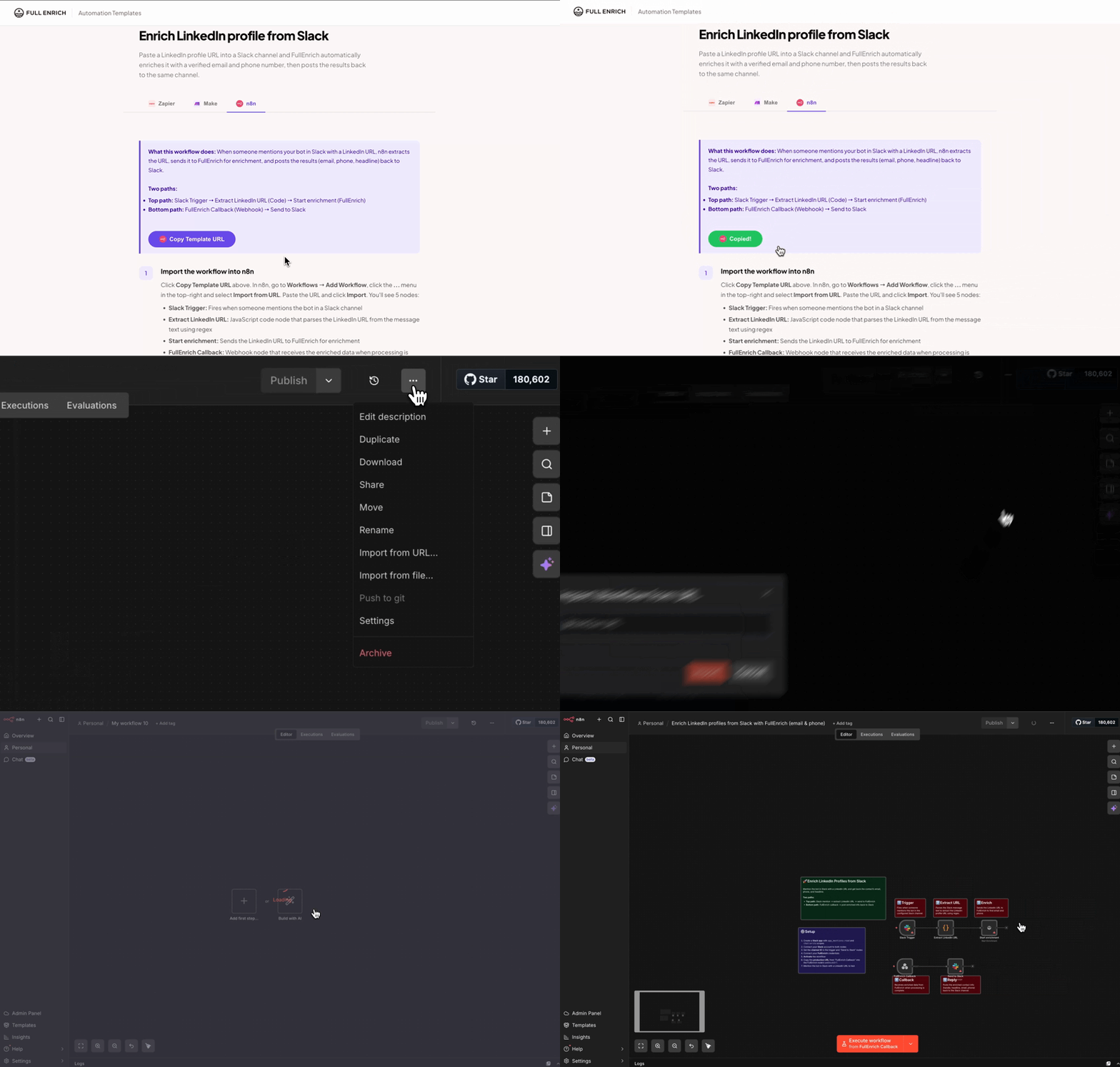
Click Copy Template URL above. In n8n, go to Workflows → Add Workflow, click the ... menu in the top-right and select Import from URL. Paste the URL and click Import. You'll see 4 nodes arranged in two parallel flows:
Airtable Trigger → Start enrichment (top flow)
Webhook → Update record (bottom flow)

3. Configure the Airtable Trigger
Click on the Airtable Trigger node. Connect your Airtable credentials, then set your Base ID and Table ID. The trigger is configured to poll every minute using the Date de création field to detect new records.
4. Configure the FullEnrich node
Click on the Start enrichment node. Connect your FullEnrich credentials. The field mapping is pre-configured:
First Name →
{{ $json.fields["First Name"] }}Last Name →
{{ $json.fields["Last Name"] }}Company Name →
{{ $json.fields["Company Name"] }}Company Domain →
{{ $json.fields["Company Domain"] }}Enrichment Name →
Airtable
A Custom Field passes the Airtable Record ID (id) so the result can be matched back to the correct record.
5. Set up the Webhook
Click on the Webhook node. It's configured as a POST endpoint with the path fullenrich-callback. Activate the workflow first, then copy the production URL (not the test URL) and paste it into the FullEnrich node's Webhook URL field.
6. Configure the Update Record node
Click on the Update record node. Connect your Airtable credentials and set the same Base ID and Table ID. The mapping is pre-configured:
Record ID →
{{ $json.body.datas[0].custom.id }}Email →
{{ $json.body.datas[0].contact.most_probable_email }}Phone →
{{ $json.body.datas[0].contact.most_probable_phone }}LinkedIn URL →
{{ $json.body.datas[0].contact.social_medias.find(s => s.type === 'LINKEDIN')?.url }}
7. Test the workflow
Click Test workflow, then add a new record to your Airtable table. The top flow will detect it and send it to FullEnrich. After a few seconds, the webhook receives the results and the bottom flow updates the record with Email, Phone, and LinkedIn URL.
8. Activate the workflow
Toggle the workflow to Active. Make sure the FullEnrich node's Webhook URL is set to the production URL (without webhook-test in it). The Airtable Trigger will poll every minute for new records.
Note: The
idcustom field is essential. It passes the Airtable Record ID through FullEnrich so the webhook callback knows which record to update. It appears in the response at$json.body.datas[0].custom.id.
Problem | Solution |
|---|---|
Webhook never receives data | Make sure you're using the production webhook URL (without |
Record ID missing in webhook data | Check that you added |
FullEnrich returns no email | Make sure First Name, Last Name, and Company Name are mapped correctly. Adding Company Domain improves match rates. |
Airtable update fails | Check that the Base ID and Table ID match the trigger node, and that the Email, Phone, and LinkedIn URL columns exist in your table. |