



1. Source - Find Jobs (Clay Native)
The template searches Clay's job database for recent SDR/BDR postings. Pre-configured with:
Job Titles: SDR, Sales Development Representative, Business Development Representative
Location: United States + Remote
Date Range: Last 30 days
Deduplication: 1 job per company (no duplicates)
Limit: Up to 50,000 results
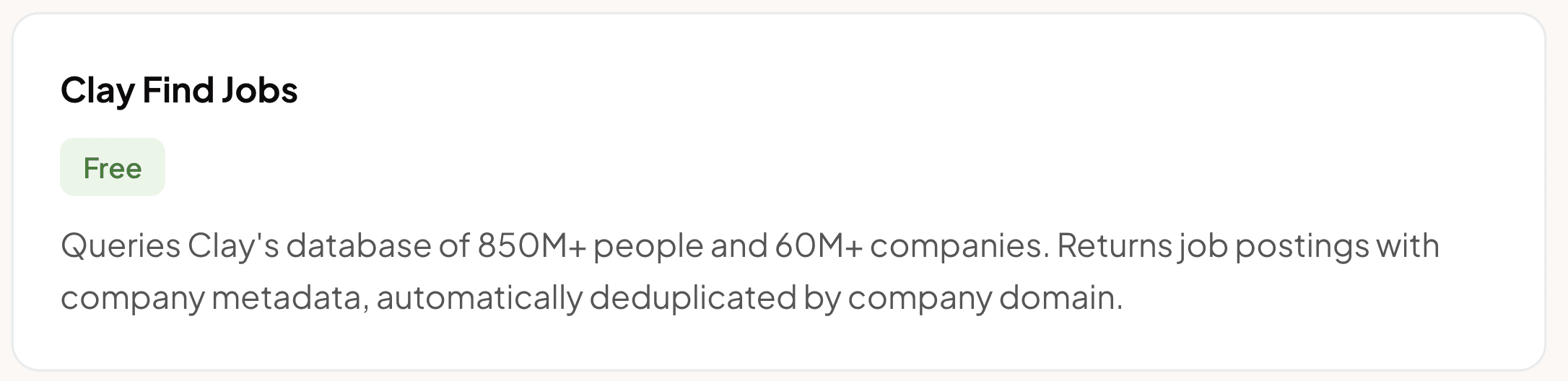
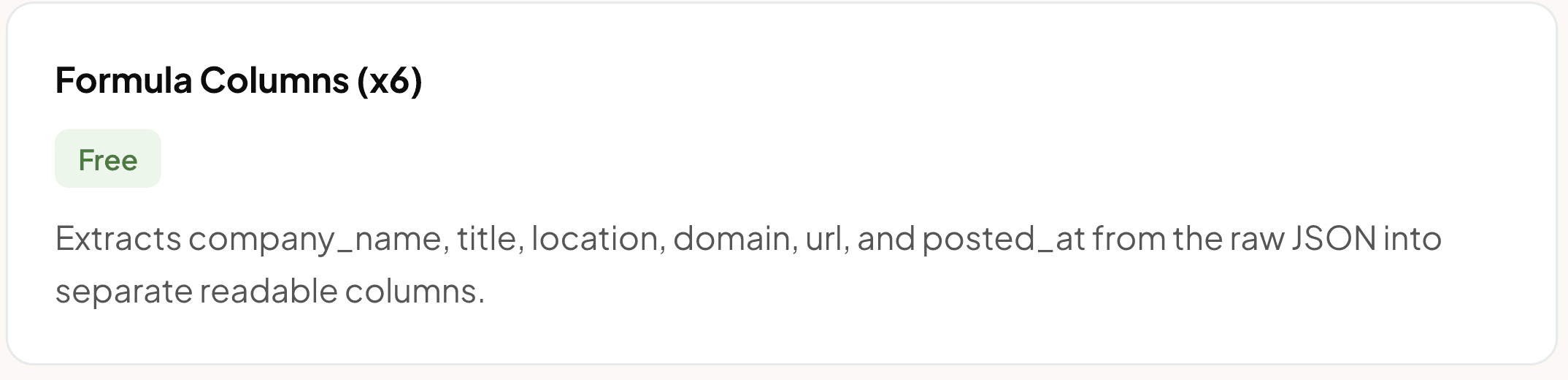
2. Extract Job Data (Formula Columns)
Automatically extracts specific fields from the raw job data into clean columns:
Company Name — e.g.
Acme CorpJob Title — e.g.
Sales Development RepresentativeLocation — e.g.
San Francisco, CA (Remote)Company Domain — e.g.
acmecorp.comJob LinkedIn URL — link to the job posting
Posted On — posting date
Uses JavaScript dot notation formulas. No API calls, instant execution.
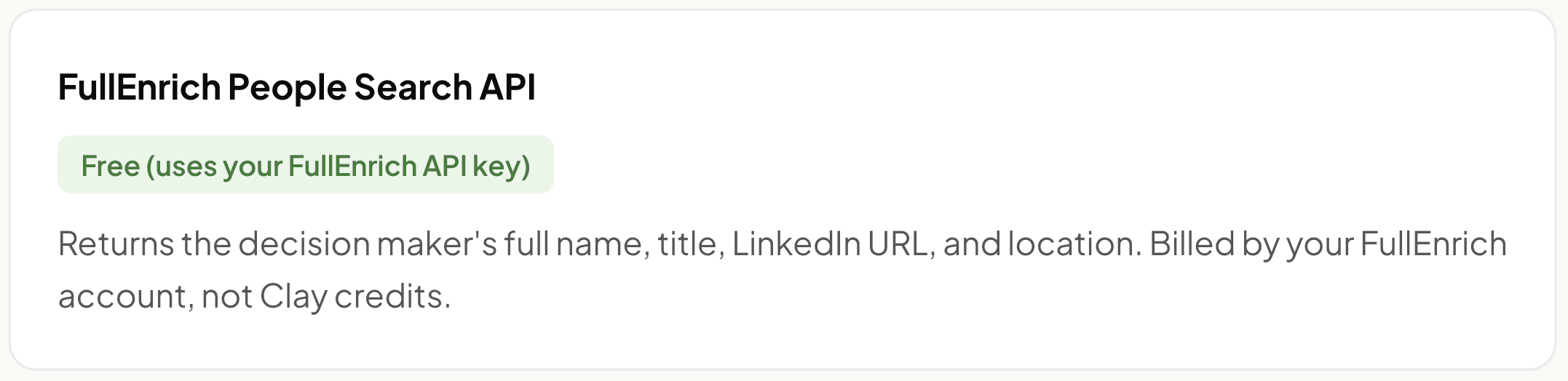
3. Find Decision Maker (FullEnrich Search API)
Calls FullEnrich's People Search API to find the sales leader at each company. The API searches for:
Seniority: VP or Director
Titles: Head of Sales, VP Sales, VP of Sales
Domain match: Exact company domain
Limit: Top 1 match per company
POST https://app.fullenrich.com/api/v2/people/search
{
  "limit": 1,
  "current_company_domains": [
    { "value": "{{Company Domain}}", "exact_match": true }
  ],
  "current_position_seniority_level": [
    { "value": "VP" },
    { "value": "Director" }
  ],
  "current_position_titles": [
    { "value": "Head of Sales" },
    { "value": "VP Sales" },
    { "value": "VP of Sales" }
  ]
}
Headers required:
Authorization: Bearer YOUR_FULLENRICH_API_KEYContent-Type: application/json
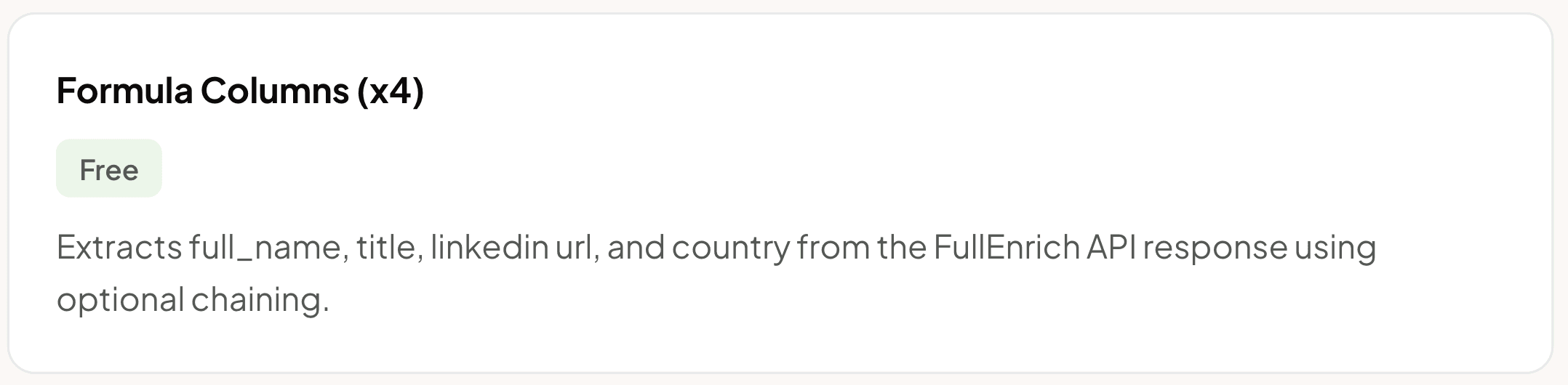
4. Extract Decision Maker Data (Formula Columns)
Parses the FullEnrich API response to extract:
Full Name — e.g.
Jordan LeeTitle — e.g.
VP of SalesLinkedIn Profile — e.g.
linkedin.com/in/jordanleeCountry — e.g.
United States
Uses JavaScript optional chaining (?.) to safely navigate nested JSON. If no match is found, returns null instead of erroring.
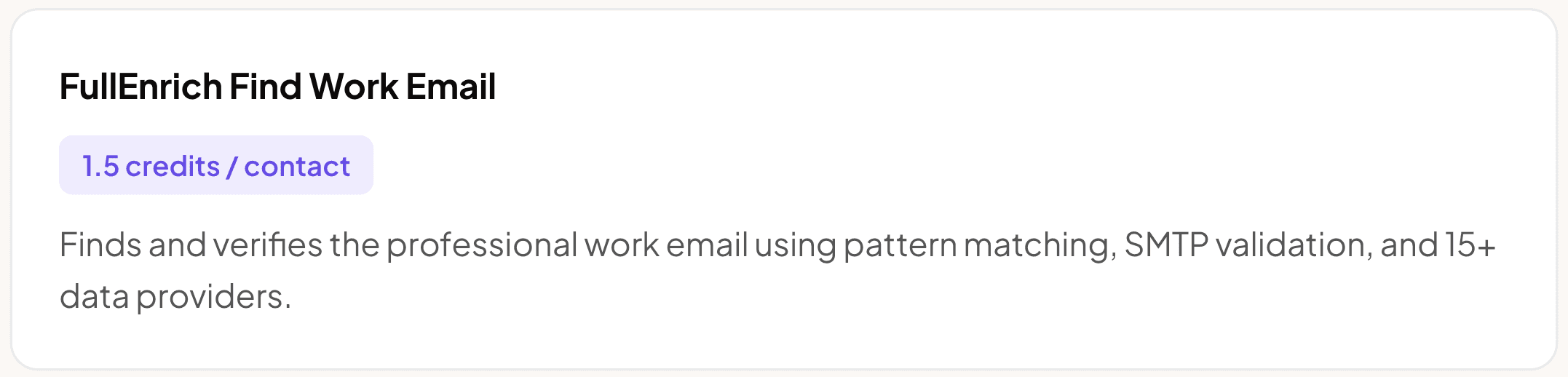
5. Enrich Work Email (FullEnrich)
Uses FullEnrich's email waterfall to find verified work emails. Only runs if a decision maker was found (Full Name is not empty).
Full Name → from Step 4
Company Domain → from Step 2
LinkedIn Profile → from Step 4
FullEnrich searches across 15+ data providers, validates against SMTP servers, and checks email deliverability.
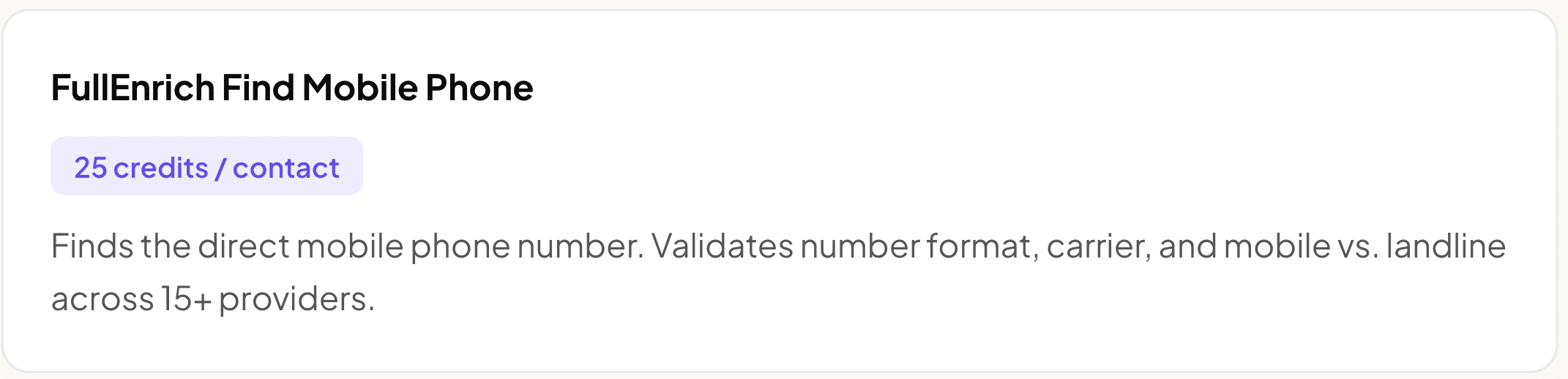
6. Enrich Mobile Phone (FullEnrich)
Uses FullEnrich's phone waterfall to find direct mobile numbers. Same run condition — only runs if a decision maker was found.
Full Name → from Step 4
Company Domain → from Step 2
LinkedIn Profile → from Step 4
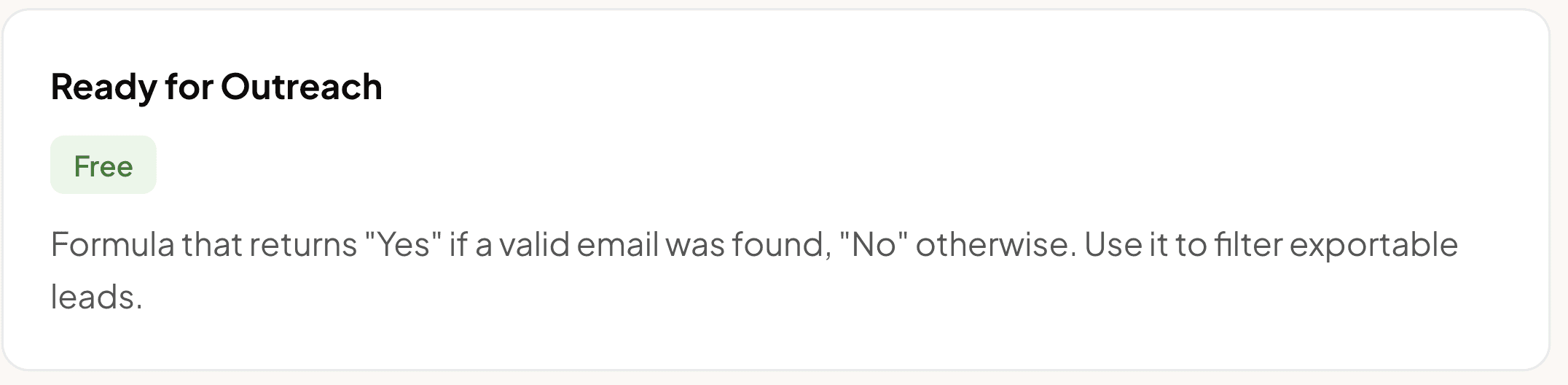
7. Flag Outreach Readiness (Formula)
Automatically marks which leads have complete data for outreach. Checks if a valid email exists and returns Yes or No. Filter your table by Ready for Outreach = Yes to see only leads ready to export.
Cost per fully enriched lead | |
|---|---|
Find Jobs + Formula columns | Free |
FullEnrich Search API | Free (your API key) |
FullEnrich Find Work Email | 1.5 credits |
FullEnrich Find Mobile Phone | 25 credits |
Total per lead | 26.5 credits |
How to execute this workflow
Find Jobs source already ran — companies are in the table
Formula columns auto-calculate — data is extracted
Run the FullEnrich Search API column (test with 10 rows first)
Decision maker formulas auto-populate
Run FullEnrich Email (only rows with Full Name)
Run FullEnrich Phone (only rows with Full Name)
Filter by "Ready for Outreach = Yes" → Export
Quality control tips
Test with 10 rows first before running on the full list
Check API response — make sure decision makers are relevant
No decision maker found? — Company may be too small, or title doesn't match filters
Phone missing? — Not all people have public phone numbers (expected)
Run on a schedule — Set Find Jobs to run daily/weekly for hot leads


