
Enrich new Typeform responses with FullEnrich

Enrich new Typeform responses with FullEnrich

Clay

Automatically enrich every new Typeform submission with verified B2B emails, phone numbers, and LinkedIn profiles using FullEnrich, then push the enriched data to Google Sheets.

Automatically enrich every new Typeform submission with verified B2B emails, phone numbers, and LinkedIn profiles using FullEnrich, then push the enriched data to Google Sheets.

Zapier

What this Zap does: When someone submits your Typeform, FullEnrich automatically enriches the respondent with verified email and phone number. Every new lead comes in already enriched and ready to act on. The Zap uses 2 steps: Typeform New EntryFullEnrich Enrich Contact.

Use this Zap

1. Prepare your Typeform

Make sure your Typeform includes questions that capture the following fields:

  • First Name

  • Last Name

  • Company Name

  • Company Domain (optional, improves match rates)

  • LinkedIn URL (optional)

2. Open the Zap template

Click the Use this Zap button above to open the template in Zapier. The Zap contains 2 pre-configured steps:

  • Trigger: Typeform - New Entry (instant)

  • Action: FullEnrich - Enrich Contact

3. Configure the Typeform trigger

Click on the first step (New Entry). Connect your Typeform account, then select the Form you want to monitor. This is an instant trigger — the Zap fires immediately when someone submits the form, with no polling delay.

4. Connect your FullEnrich account

Click on the second step (Enrich Contact). Connect your FullEnrich account using your API key. Map the following fields from the Typeform trigger:

  • Name of Your Enrichment → e.g. Typeform

  • First Name → First Name answer from Typeform

  • Last Name → Last Name answer from Typeform

  • Company Name → Company Name answer from Typeform

  • Domain of the company → Company Domain answer from Typeform

  • Enrich with → Emails + Phones

5. Test and turn on

Click Test step on each step to verify everything works — submit a test response to your Typeform first. Check that FullEnrich returns enriched data. Once confirmed, click Publish to turn the Zap on. Every new form submission will now be automatically enriched.

Tip: This Zap enriches the contact but doesn't store the result anywhere by default. Add a third step (e.g. Google Sheets, HubSpot, or Slack) to send the enriched data wherever you need it.

Problem

Solution

FullEnrich returns no email

Make sure First Name, Last Name, and Company Name are mapped correctly from the Typeform answers. Adding the Company Domain improves match rates.

Zap doesn't fire

Make sure the Zap is published and that you selected the correct Typeform. Submit a new test response to verify.

Wrong fields mapped

Typeform answers are referenced by their question label. Make sure the question titles in your form match what you're mapping in Zapier.

Want to store enriched data

Add a third action step (e.g. Google Sheets - Create Row, or HubSpot - Create Contact) to save the enriched email and phone somewhere useful.

Make

What this scenario does: When someone submits your Typeform, FullEnrich automatically enriches the respondent with verified B2B email and phone number. You can then add a third module (e.g. Google Sheets, CRM) to store the enriched data.

2 modules: Watch Responses (polling) → FullEnrich Enrich

Get template

1. Watch Responses (trigger)

Go to make.com and click Create a new scenario. Add the first module: search for Typeform and select Watch Responses. Connect your Typeform account and select the form you want to watch. Set the Limit to 1 and enable Completed to only process fully submitted responses. Your Typeform should collect First Name, Last Name, Company, and optionally Website URL (domain) — ideally as a grouped question.

2. FullEnrich - Enrich

Add a second module: FullEnrich → Enrich. Connect your FullEnrich API key. Map the fields from the Typeform Mappable Answers:

  • First Name → First name (from the grouped question)

  • Last Name → Last name (from the grouped question)

  • Company Name → Company (from the grouped question)

  • Domain → Website URL (from the grouped question)

Under Enrich with, select Emails and Phones.

3. Add a destination module (optional)

Add a third module to store the enriched data. For example:

  • Google Sheets → Add a Row — map First Name, Last Name, Company, B2B Email, and Phone

  • Airtable → Create a Record — map the enriched fields to your table columns

  • Any CRM — create or update a contact with the enriched data

4. Test and activate

Click Run once to test. Submit a response to your Typeform and verify that FullEnrich returns the enriched data. Once confirmed, toggle the scenario ON and set the polling schedule.

Typeform setup tip: Use a grouped question in your Typeform to collect First Name, Last Name, Company, and Website URL in a single step. This makes the fields easy to map as "Mappable Answers" in Make.

Problem

Solution

FullEnrich returns no email

Make sure First Name, Last Name, and Company are mapped correctly from the Mappable Answers. Adding the Website URL (domain) improves match rates.

Typeform module shows no data

Submit a test response to your Typeform after clicking Run once. Make sure Completed is enabled and the form has been fully submitted (not just opened).

Fields not showing in Mappable Answers

Use a grouped question in Typeform with separate fields for each piece of info. Individual questions will also work but may have less descriptive labels.

n8n

What this workflow does: When someone submits your Typeform, FullEnrich enriches the respondent with verified B2B email and phone number. The callback webhook receives the results - you can then add your own destination node (Google Sheets, CRM, etc.) to store the enriched data. Uses two parallel flows because FullEnrich works asynchronously.

Top flow (2 nodes): Typeform Trigger (instant) → Start enrichment (FullEnrich)
Bottom flow (1 node + your destination): FullEnrich Callback → add your destination node here

Typeform setup: Your form needs fields for First name, Last name, Company, and Website URL (domain). Use a grouped question to collect all four in a single step.

1. Import the workflow

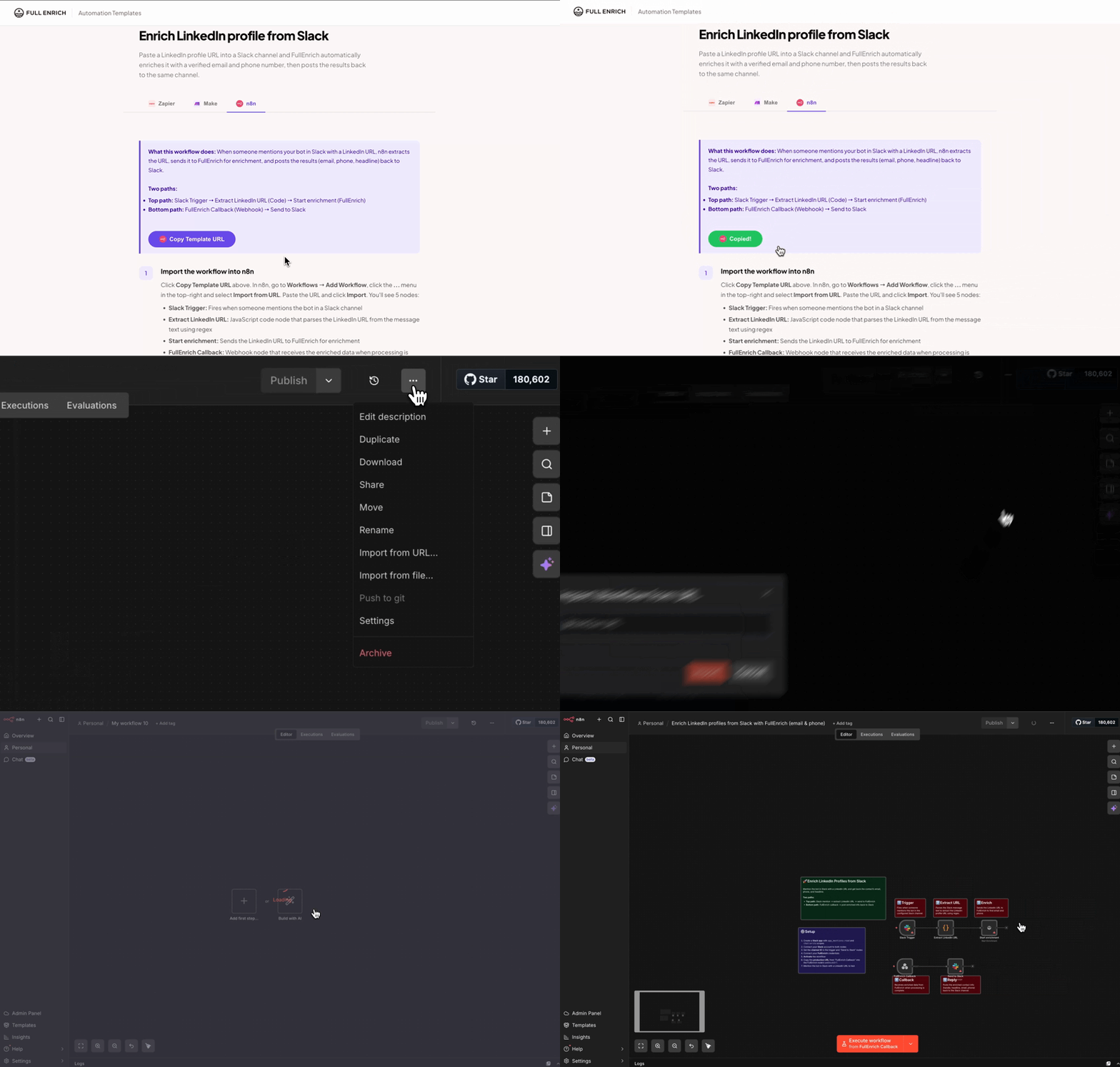
Click Copy Template URL above. In n8n, go to Workflows → Add Workflow → ⋯ (three-dot menu) → Import from URL and paste the URL.

2. Typeform Trigger (instant)

Open the Typeform Trigger node. Connect your Typeform account and select the form you want to watch. This node fires instantly via webhook when a new response is submitted.

3. Start enrichment (FullEnrich)

Open the FullEnrich node. Connect your API key and map the fields:

  • Enrichment Name → Typeform

  • First Name → {{ $json["First name"] }}

  • Last Name → {{ $json["Last name"] }}

  • Company Name → {{ $json.Company }}

  • Company Domain → {{ $json["Website URL"] }}

  • Webhook URL → production URL of the callback webhook (Step 4)

4. FullEnrich Callback (bottom flow)

Open the Webhook node (bottom flow). The HTTP method is set to POST and the path to fullenrich-callback. Copy this node's production URL and paste it in the FullEnrich node's Webhook URL field (Step 3). The enriched data will arrive at:

  • B2B Email → {{ $json.body.datas[0].contact.most_probable_email }}

  • Phone → {{ $json.body.datas[0].contact.most_probable_phone }}

5. Add a destination node (optional)

After the callback webhook, add a node to store the enriched data. For example:

  • Google Sheets → Append Row — map the enriched email and phone to columns

  • Notion → Update Database Page — update a page with the enriched data

  • Any CRM — create or update a contact

6. Test and activate

Click Test workflow, then submit a response on your Typeform. The top flow sends the data to FullEnrich. After a few seconds, the callback webhook receives the enriched results. Toggle the workflow to Active and make sure the Webhook URL is set to the production URL.

Problem

Solution

Callback webhook never receives data

Make sure you're using the production webhook URL (without webhook-test) and that the workflow is Active.

FullEnrich returns no email

Make sure your Typeform fields are named First name, Last name, Company, and Website URL. Adding the domain improves match rates.

Typeform trigger doesn't fire

Make sure the Typeform account is connected and the correct form is selected. Submit a fully completed response (partial submissions won't trigger).