
LinkedIn enrichment is the process of taking a LinkedIn profile URL and attaching the contact data the profile doesn't show, such as a work email, a mobile number and company details. It isn't LinkedIn profile optimization, and it isn't LinkedIn automation or outreach.
You usually start from one of three places. You have one profile open in your browser, a list of profiles, or a pipeline you want to run on its own. Each one needs a different method.
This guide covers what data comes back and how enrichment works. Then it walks through the three routes with steps, what LinkedIn's rules say, which tool fits, and what it costs.
FullEnrich sells enrichment, so we're one of the options below. Where another tool wins, we say so.
Key Takeaways
- What it is: LinkedIn enrichment turns a LinkedIn profile URL into the contact data the profile doesn't show: work email, mobile phone and company details.
- Pick the route by starting point: one profile while you browse, a list of profiles, or an automated pipeline. Each needs a different tool.
- Extensions win in the browser: FullEnrich has no Chrome extension today. For one-off profiles inside LinkedIn, extension tools are faster.
- Lists need a list step first: Sales Navigator has no CSV export, so get the URLs out before you enrich them.
- Rules: LinkedIn's User Agreement bans scraping tools. Enriching a URL you already hold is a different act from scraping the page.
- Cost: judge by cost per usable contact. FullEnrich charges 1, 3 or 10 credits as of 6 October 2026, and only when data is found.
What is LinkedIn enrichment?
LinkedIn enrichment means you give a tool a LinkedIn profile URL, and it gives back contact and company data for that person. The URL points to one specific person. So the tool doesn't have to guess who you mean.
A URL isn't the only input. A first name, last name and company work too. The URL just removes the doubt about which John Smith you want.
Here's what can come back, per FullEnrich's API docs as of 6 October 2026:
- Person: title, headline, location, employment history, skills and education.
- Company: domain, headcount, industry and technologies.
- Contact: the most probable work email, personal email and phone, plus the other results behind them.
Phone results carry extra fields, including line_type, line_status and connect_rate. They tell you what kind of line you got, whether it's active, and how likely a call is to connect. You'll want them later, when you decide who to call.
That's the whole job: contact data out of a profile you can already see. It's not about polishing your own profile or automating messages.
What does a LinkedIn profile give you, and what is missing?
A profile gives you who the person is and where they work, but contact details show only if the member chose to share them. Name, title, company, location and job history are usually there. An email or a phone number usually isn't.
The member decides. LinkedIn's help page on email visibility says that by default, your registered email "is only visible to your direct connections on LinkedIn." Members can widen that to 2nd-degree connections or anyone. They can also narrow it to only themselves. The Contact info section works the same way: a connection's phone or email shows up only if they opt to share it. LinkedIn's help pages say both as of 6 October 2026.
Sales Navigator doesn't change this. It adds search and lead lists. Contact details still show only when the member shares them. We explain why Sales Navigator doesn't give you emails in a separate guide.
Profiles also age. The Bureau of Labor Statistics put median tenure with a current employer at 4.1 years in January 2026. Lusha's own data, on US sales leaders only, found that 12.25% changed roles over twelve months. Lusha published that on 12 September 2026.
So enrich close to the moment you'll use the data. A list you enriched months ago may already point at old jobs.
How does LinkedIn enrichment work?
A URL goes in and the tool matches the person. It asks data providers in turn and verifies what comes back. Then it sends the result to a file, an app or your CRM.
Here's each step in plain terms:
- URL in. You send a linkedin.com/in/ profile URL, or a name plus company.
- Match. The tool ties the URL to one person and one company.
- Waterfall. It asks a first data provider. If that provider has nothing, the next one gets a try. FullEnrich runs this across 25+ providers.
- Verification. Emails get a deliverability check. Phones get a line check. The tool drops results that fail, and the waterfall moves on.
- Output. The result lands in a CSV, comes back through the API, or goes to HubSpot through FullEnrich's native integration.
Waterfall enrichment means asking data providers one after another until one returns a result that passes verification. The point is coverage. No single provider knows every person, so asking several raises your odds.
The URL helps too. FullEnrich's own API docs claim a LinkedIn URL can lift enrichment rates. They put the lift at 5 to 20% for emails and 10 to 60% for mobile numbers. That's FullEnrich's claim as of 6 October 2026. Test it on your own list.
Not every LinkedIn enrichment setup works this way. One n8n template takes a LinkedIn URL and makes a single Apollo People Match call. Apollo is the only data source in that workflow.
Call that a one-provider pipeline. It's quick to build. But if Apollo doesn't have the person, there's no second source to ask.
How do you enrich LinkedIn profiles?
There are three ways to enrich LinkedIn profiles. Use an extension for one profile while you browse. Use a CSV upload for a list. Use the API or a no-code action for a pipeline. Pick the route by what you have in hand. Each one below ends with a recommendation.
How do you enrich one profile while you browse?
Use an extension tool. It runs on the profile page, shows contact data next to the profile, and pushes the lead to your CRM in one click.
Lusha, Surfe, Kaspr, ContactOut, Kikayon and Apollo all offer one. A Lusha user wrote in August 2026 that the extension "fits naturally into my workflow, especially when I'm prospecting on LinkedIn."
Extensions have limits too. A ContactOut user wrote in December 2025 that the extension "sometimes slows down or fails to load on certain profiles."
FullEnrich doesn't offer a Chrome extension today. Our users notice. One G2 reviewer in August 2026 said the only thing they'd improve is "having a Chrome extension."
For a single profile in FullEnrich, you have two options. Paste the LinkedIn URL into the app and run it. Or use the Slack template. Post a LinkedIn URL in a Slack channel, and the workflow enriches that profile with an email and a phone number. It runs on Make in 5 steps or on n8n in 7.
Our pick: if you browse LinkedIn all day, use an extension. If you need one number now, paste the URL into the app.
How do you enrich a list of LinkedIn profiles?
Get the URLs out of LinkedIn first, then upload them as a CSV.
The first step is the hard one. LinkedIn's Sales Navigator help page is plain about it, as of 6 October 2026. It says: "LinkedIn currently doesn't offer the option to export account and lead information from Sales Navigator into a CSV or XLS file." Advanced Plus users get CRM Sync. That links records to a CRM, but it doesn't hand you a file of profile URLs.
Call it the list gap. Your list lives in Sales Navigator, and your enrichment tool needs a file. Something has to bridge the two. Our guide on how to export a list from Sales Navigator covers the options. List-extraction tools such as PhantomBuster fill this role. PhantomBuster says, as of 6 October 2026, that it keeps no contact database of its own, so it pairs with an enrichment tool.
Once you have the URLs, the upload is short:
- Put the LinkedIn profile URLs in one column. Name plus company works for rows without a URL.
- Upload the CSV and match your columns to FullEnrich's fields on the mapping screen.
- FullEnrich processes 100 contacts at a time. Bigger files queue on their own.
- Download the enriched CSV, or push the results to HubSpot.
Use standard linkedin.com/in/ profile URLs in that column. That's the format FullEnrich's help center asks for.
Size the run before you upload. Every email or mobile found uses credits, so check that your plan covers the list.
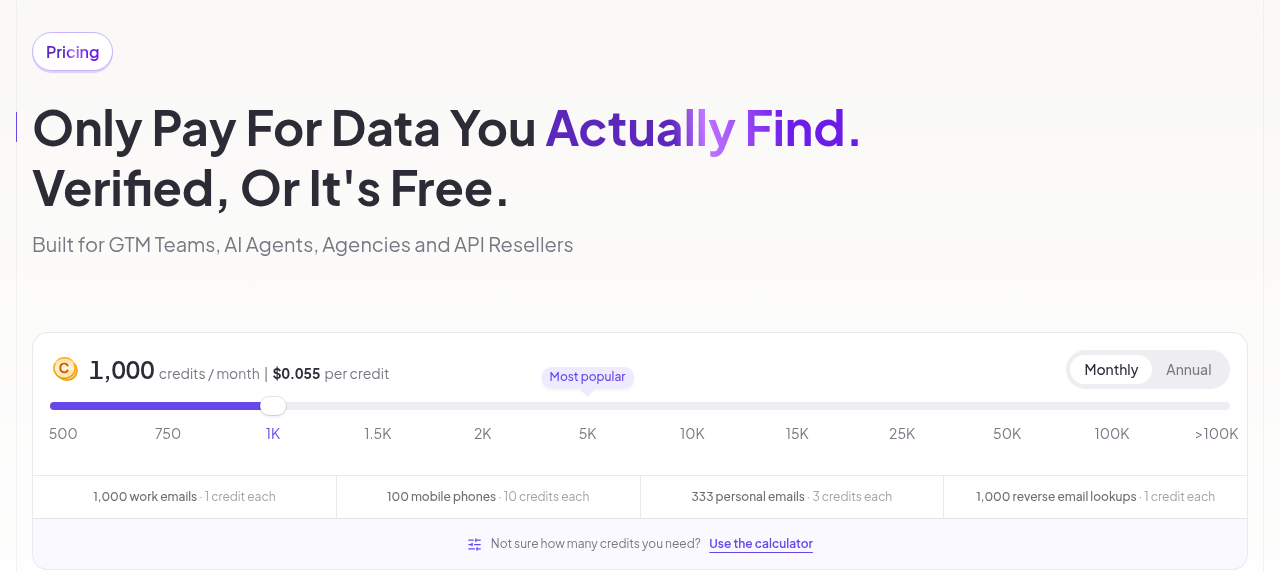
FullEnrich's pricing page in October 2026, with its credit slider and the credit cost of each data type.
Our pick: for a few hundred to a few thousand URLs in a spreadsheet, use the CSV upload.
How do you automate LinkedIn enrichment?
Use the API with a webhook, or a native Zapier, Make or n8n action if you want no code.
The API takes a linkedin_url field. Here's how the bulk enrichment endpoint behaves, per FullEnrich's docs as of 6 October 2026:
- One call enriches up to 100 contacts.
- Each request has a
nameand adatalist. Each contact indatalists itsenrich_fields:contact.work_emails,contact.personal_emailsorcontact.phones. - The call returns an
enrichment_id. Results arrive later on your webhook. - If delivery fails, FullEnrich retries every minute, up to 5 times.
- Polling works but isn't recommended. If you poll, don't go more than once every 5 to 10 minutes, per the webhook docs.
- An optional per-contact event fires as each contact finishes, so you don't wait for the whole batch.
A minimal request body looks like this:
{
  "name": "LinkedIn list",
  "webhook_url": "https://example.com/fullenrich-webhook",
  "data": [
    {
      "linkedin_url": "https://www.linkedin.com/in/alice-wong",
      "enrich_fields": ["contact.work_emails", "contact.phones"]
    }
  ]
}
Clay works too. Its own waterfall lesson, as of 6 October 2026, says to include personal LinkedIn URLs beside the company domain where you can. Clay's waterfall stops at the first valid email, and it treats catch-all emails as valid by default. The lesson also says to test 10 rows before you scale. That's good advice for any tool.
If you'd rather skip code, FullEnrich has native actions in Zapier, Make and n8n. See FullEnrich integrations for the full list.
Our pick: for a pipeline that runs without you, use the API plus a webhook. On a no-code stack, use the native action.
Here's the short version of all three routes.
You have | Use | Where it wins | Watch out for |
|---|---|---|---|
One profile open in your browser | An extension tool | No tab switch; CRM sync from the profile page | FullEnrich has none; extensions can fail on some profiles |
A list of profiles | CSV upload | Hundreds of profiles in one run | Sales Navigator has no CSV export; get the URLs first |
A trigger or stream of leads | API or a no-code action | Runs without you | Handle batches of 100 and the webhook |
Is LinkedIn enrichment allowed?
It depends on how your tool gets its data. LinkedIn's User Agreement bans tools that scrape the site, and enriching a URL you already hold is a different act.
Section 8.2 of the User Agreement covers this, as of 6 October 2026. It bans software "such as crawlers, browser plugins and add-ons or any other technology" used to scrape or copy the Services. It also bans "bots or other unauthorized automated methods to access the Services, add or download contacts."
URL-based enrichment works differently. You pass the URL as a plain text field. FullEnrich's API, for example, asks for a FullEnrich API key, not your LinkedIn login. The rules target scraping and automated downloading, by any method. Before you install anything, check how it gets its data.
LinkedIn does take scraping to court. Its case against Nubela, the company behind the Proxycurl API, ended in a final judgment on consent in July 2025.
This isn't legal advice. Check your own use, and the data rules in your region, with your legal team.
Which LinkedIn enrichment tool should you use?
It depends on the route: extension tools win inside LinkedIn, and FullEnrich fits when you want many providers behind one lookup and pay only for what's found. Here's how the main options compare.
Tool | Where it wins | Entry price (6 Oct 2026) | LinkedIn route |
|---|---|---|---|
FullEnrich | Waterfall across 25+ providers; pay only when data is found | Free trial with 50 credits; Pro from $29/mo for 500 credits | App (URL or CSV), API, Zapier, Make, n8n, Clay; no extension today |
Lusha | In-page capture on profiles | Free: up to 40 credits/mo; Starter $49.90/mo for 400 credits (email 1 credit, phone 5) | Browser extension |
Surfe | In-page capture on LinkedIn, one-click CRM sync | Essential $49/user/mo ($39 billed annually) for 150 email and 50 mobile credits | Browser extension |
Kikayon | Contact data shown on the profile | See Kikayon's pricing page | Browser extension |
Clay | Waterfall across providers inside a table | See Clay's pricing page | Table with a LinkedIn URL column |
Apollo | Prospecting and outreach in one product | See Apollo's pricing page | Browser extension |
Kaspr | In-page lookups | See Kaspr's pricing page | Browser extension |
ContactOut | In-page lookups | See ContactOut's pricing page | Browser extension |
The Lusha and Surfe prices are list prices as of 6 October 2026, from Lusha's pricing page and Surfe's pricing page. For Apollo, Kaspr, ContactOut and Kikayon, check their own pages for current plans.
Each alternative has a clear strength. Lusha and Surfe are strong for capture inside the page, and Surfe adds one-click CRM sync. Apollo puts prospecting and outreach in one product, which helps if you want one tool for search and sequences. Kaspr and ContactOut cover quick lookups while you browse.
FullEnrich's case is different. It can start from only the URL, and the waterfall does the rest. One reviewer put it bluntly in July 2026: "Being able to find numbers just with a LinkedIn is crazy." You pay only when data is found.
The trade-offs are real. There's no extension, as the August 2026 reviewer quoted earlier pointed out. And a reviewer in September 2026 liked enriching from LinkedIn profiles. The downside, in their words: "its current database is very small compared to other tools like Apollo." That's one person's view, and it's worth hearing.
Our pick: if you live in LinkedIn all day, use an extension. For coverage or a pipeline, use a waterfall like FullEnrich. If your list is stuck in Sales Navigator, add a list tool first.
How much does LinkedIn enrichment cost?
As of 6 October 2026, FullEnrich charges 1 credit for a work email, 3 for a personal email and 10 for a mobile. It charges only when data is found. A lookup that returns nothing costs nothing. At the entry Pro tier, $29 a month for 500 credits, one credit costs about $0.058. That makes a work email about $0.058 and a mobile about $0.58. The full tier ladder is on FullEnrich pricing.
A few rules shape the bill:
- Profile data: person and company details are free when bundled with any enrichment. On their own, they cost 0.25 credit.
- Test contacts: the API's test contacts cost nothing.
- Re-runs: per FullEnrich's credit docs as of 6 October 2026, re-enriching the same contact within 3 months is free. Change the input, including a different LinkedIn URL, and FullEnrich can charge for it again. So clean and de-duplicate your URL column first.
Here's a worked example: 500 LinkedIn URLs, asking for a work email and a mobile. Find rates vary by region and seniority, so the example uses two illustrative cases. The low case finds 60% of emails and 50% of mobiles. The high case finds 95% and 70%. Treat both as scenarios.
- Low end: 300 emails and 250 mobiles found, for 2,800 credits. That fits the 5,000-credit monthly tier at $255.
- High end: 475 emails and 350 mobiles found, for 3,975 credits. Same tier, same $255 a month.
- Every row found: 5,500 credits, which needs the 10,000-credit tier at $499 a month.
- Work email only: 300 to 475 credits across the same range.
- Same 500 URLs again within 3 months: 0 credits.
Judge the result by cost per usable contact: what you spend, divided by contacts with at least one result. A cheap credit doesn't help if few lookups find anything. Credits don't compare cleanly across vendors either, since plan sizes and credit rules differ.
Phones still need checks. Each phone result carries line_type, line_status and connect_rate, so read them before you dial. One FullEnrich reviewer wrote in September 2026 that "you will get mobile phones but when you check, they have a DND and you can't call them." Run your own do-not-call checks before a campaign.
FAQ
Can LinkedIn restrict your account for using enrichment tools?
It depends on how the tool works. LinkedIn's User Agreement bans crawlers, bots, browser plugins and add-ons that scrape the site or download contacts. FullEnrich takes a URL you already hold as a text input, with no LinkedIn login. Check how any tool gets its data before you install it.
Do you need Sales Navigator or Premium to enrich LinkedIn profiles?
No. FullEnrich takes the profile URL as text and runs on your FullEnrich account or API key. It doesn't need a LinkedIn login, so you don't need a Sales Navigator or Premium seat. Sales Navigator helps you build lead lists, but LinkedIn's help center said on 6 October 2026 that it doesn't export them to a CSV or XLS file. So you'll need a separate step to get the URLs out before a bulk run.
Can you enrich a Sales Navigator URL?
Use the standard linkedin.com/in/ profile URL instead. That's the format FullEnrich's help center asks for, and it's the safe choice for both the app and the API. If your list only holds Sales Navigator links, ask support before a large run. A quick check saves you from a batch of failed lookups.
Can you go from an email back to a LinkedIn profile?
Yes. That's reverse email lookup: you send an email address and get back the person and company profile, including the LinkedIn URL. At FullEnrich, it runs through the API only and costs 1 credit. It works on work and personal emails. Here's how to find a LinkedIn profile by email.
How accurate is the contact data from a LinkedIn URL?
It varies by region and seniority. FullEnrich's pricing page said on 6 October 2026 that verification removes about 30% of raw provider data before it reaches you. What's left has passed email and phone checks. Still, no tool can promise that every email lands. Check phone line status and do-not-call lists before you dial, and test a small batch first.
Bottom line
Pick the route first, then the tool. Use an extension for one profile in the browser. Use a CSV for a list, once you've got the URLs out of Sales Navigator. Use the API with a webhook for a pipeline that runs on its own. Judge every option by cost per usable contact, and check phone line status before you dial.