
CSV enrichment means uploading a spreadsheet of contacts you can't reach yet. You get the same file back with work emails, mobile numbers and job data added. Your rows stay as they are. The tool matches each one to a real person and fills new columns.
A good run comes down to three choices: what goes in each row, what you'll pay for, and which results you send.
This guide walks through all three, with screenshots from a real run in FullEnrich. For the bigger picture, see our guide to data enrichment. We run every row through a waterfall enrichment across 20+ sources, so we see where files go wrong.
Key Takeaways
CSV enrichment uploads a spreadsheet of partial contacts and returns the same file with work emails, mobiles and job data in new columns.
Each row needs a first and last name plus a company name or website, or else a LinkedIn profile URL. More identifiers mean more matches.
Excel quietly breaks files: dropped leading zeros, phones in scientific notation, semicolon delimiters. Fix the format before you upload.
In FullEnrich, a miss costs 0 credits, a work email 1 and a mobile 10. Catch-all emails still cost 1 credit, and every duplicate row runs.
Sort the output by email status. Send Valid, usually send Probably valid, test Catch-all on a small slice, never send Invalid.
What is CSV enrichment?
CSV enrichment is a contact lookup done in bulk. You upload a file of partial records, the tool matches each row to a person, and it adds the fields you asked for.
What goes in is thin: a name and a company, or a LinkedIn profile URL. What comes back is usable: a work email with its verification status, a mobile number, often a current job title.
Picture one row. In: a first name, a last name, "Northwind" and "northwind.io". Out: the same four cells, plus a work email marked Valid and a mobile number.
CSV stands for comma-separated values. It's a plain-text table with one record per line, which is why almost every CRM and spreadsheet tool reads it.
How is CSV enrichment different from API or CRM enrichment?
CSV enrichment differs from API and CRM enrichment in what starts the run. You start a CSV run by hand. An API call runs per lead from your own systems. CRM enrichment updates records where they already live.
Method | What starts it | Best for |
|---|---|---|
CSV upload | You, with a file in hand | One-off lists: event attendees, old exports, Sales Navigator lists |
API | Your own system, per lead | Every new lead, enriched as it arrives |
CRM enrichment | Records already in your CRM | Refreshing contacts you already own |
This page is the upload how-to. Running enrichment at API or CRM scale? See our guide to bulk enrichment. If your records already sit in HubSpot, start with HubSpot enrichment. For inbound leads, see lead enrichment.
Which columns does a CSV need for enrichment?
To enrich contacts from a CSV, every row needs one of two things: a first and last name plus a company name or website, or a LinkedIn profile URL. That's the minimum FullEnrich accepts. Everything else is optional, but each extra identifier gives the match more to work with.
The app tells you which ones matter most. On the mapping screen, it labels a company website "15% more results" and a LinkedIn URL "35% more results". Treat those hints as a priority order: LinkedIn URL first, website second, company name last.
Sales Navigator URLs work on the upload screen too. You don't need to convert them to standard profile links. If your list starts on LinkedIn, our guide to LinkedIn enrichment covers the export side.
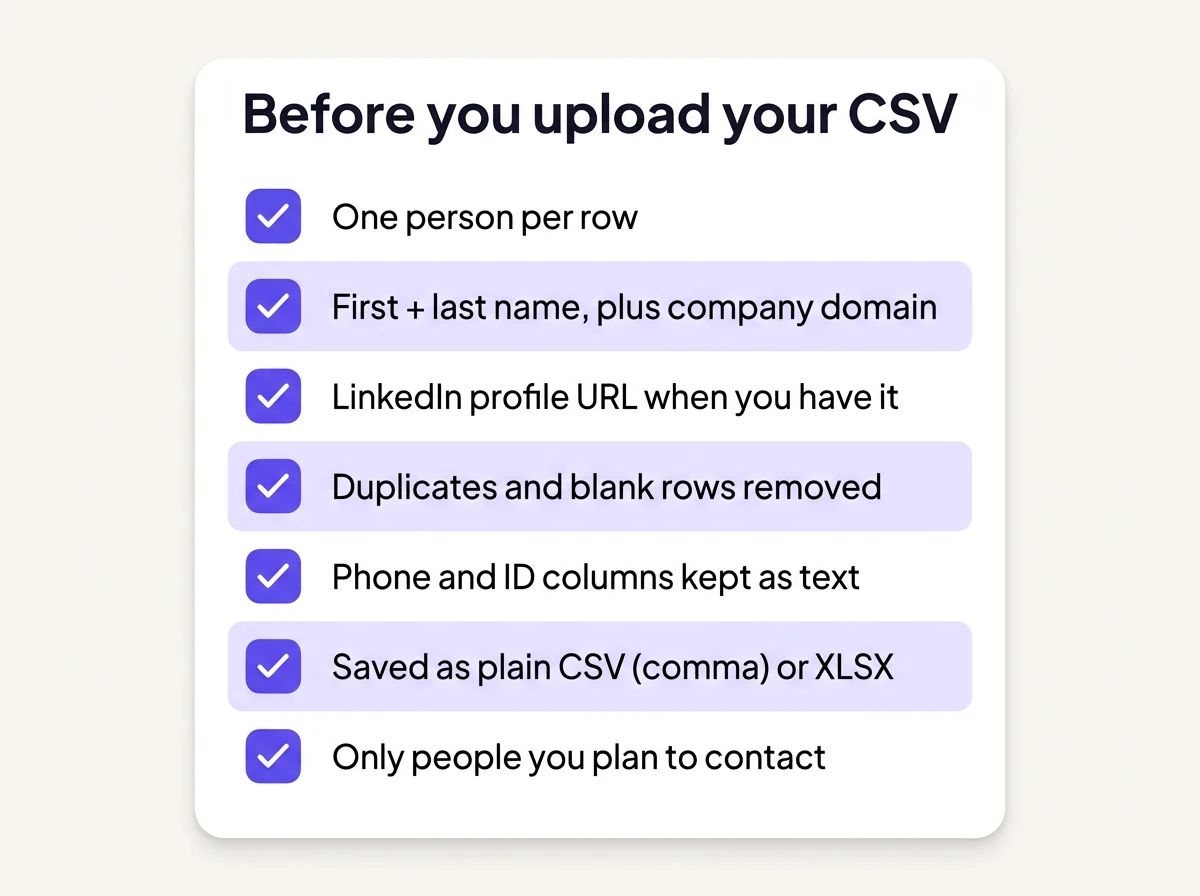
Then run these checks before you upload:
- One person per row. Two contacts in one row means one of them gets lost.
- Website over company name. A domain points to one company. A name like "Delta" could be ten.
- Remove duplicates yourself. FullEnrich doesn't dedupe inside one file, so every copy runs. Matching against past runs also needs identical input: a different spelling, domain or LinkedIn URL format counts as a new contact.
- Drop empty rows and unused columns. They cause mapping errors.
- Cut people you'll never contact. One practitioner argues the best saving comes from checking fit before enrichment: is the company still active, and does it match your ICP? We agree. An enriched row you never email is pure cost.
Which spreadsheet mistakes break the match?
Excel breaks CSV files in ways that fail uploads and scramble columns: it drops leading zeros, turns long phone numbers into scientific notation and can save with semicolons instead of commas. It rewrites your file when it opens or saves it, and the damage is easy to miss.
These are the ones we see most:
- Leading zeros vanish. Excel guesses each column's type when it opens a CSV. Microsoft's import steps fix it: rename the file from .csv to .txt so Excel opens its import wizard, then set that column to Text.
- Long numbers turn into scientific notation. Excel keeps 15 digits of precision and may display long numbers as something like 1.23E+11. Phone columns suffer most, and one user found their upload tool rejected the field. Format phone columns as text.
- Phones starting with + can be read as formulas. Excel treats plus and minus as math operators, so a leading + can start a calculation. Set the column to text before you paste.
- Semicolons instead of commas. Excel uses your region's list separator, which is a semicolon in many European locales. Some tools reject those files outright.
- Commas inside a field. "Acme, Inc." splits into two columns unless the field sits in double quotes, as the CSV format spec describes.
- The wrong encoding. Files saved with a byte order mark or in UTF-16 can fail on some upload tools. If an upload fails on encoding, upload the XLSX instead.
- An .xlsx renamed to .csv. Renaming doesn't convert anything. Re-export the file properly.
The simplest fix in FullEnrich is to skip the conversion. The upload box takes CSV and XLSX files directly.
How do you upload and enrich a CSV in FullEnrich?
In FullEnrich, you enrich a CSV in six steps: pick your data, upload, map columns, review rows, start, then download or push. Here's each one, with screenshots.
Step 1. Choose what you want. Go to Enrichments, then Enrich CSV/Excel. Pick Phone & Email, Mobile phone or Work Email before you upload. If you only need to find work emails, pick Work Email and skip the mobile cost. Recruiters can switch on personal emails in workspace settings. Keep those out of sales lists.
Step 2. Upload the file. Drag your CSV or XLSX into the box, or click to select it. There's a "Download example" button if you want a template to copy.
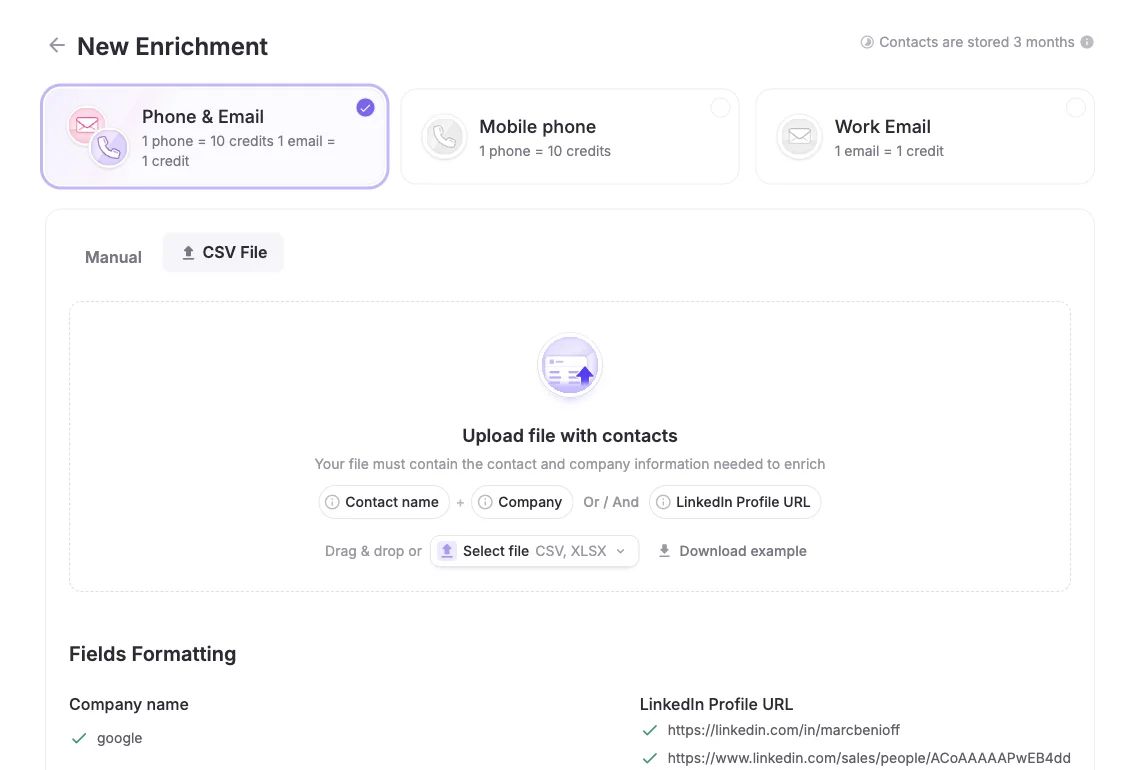
The upload screen lists what each row needs: a contact name plus company, or a LinkedIn profile URL.
Step 3. Map your columns. Toggle "First line contains headers" if row one holds titles. Then check every field. In our sample file, First Name, Last Name, Company Website and LinkedIn URL mapped on their own. Our "Company" column didn't, so we set it to Company Name by hand.
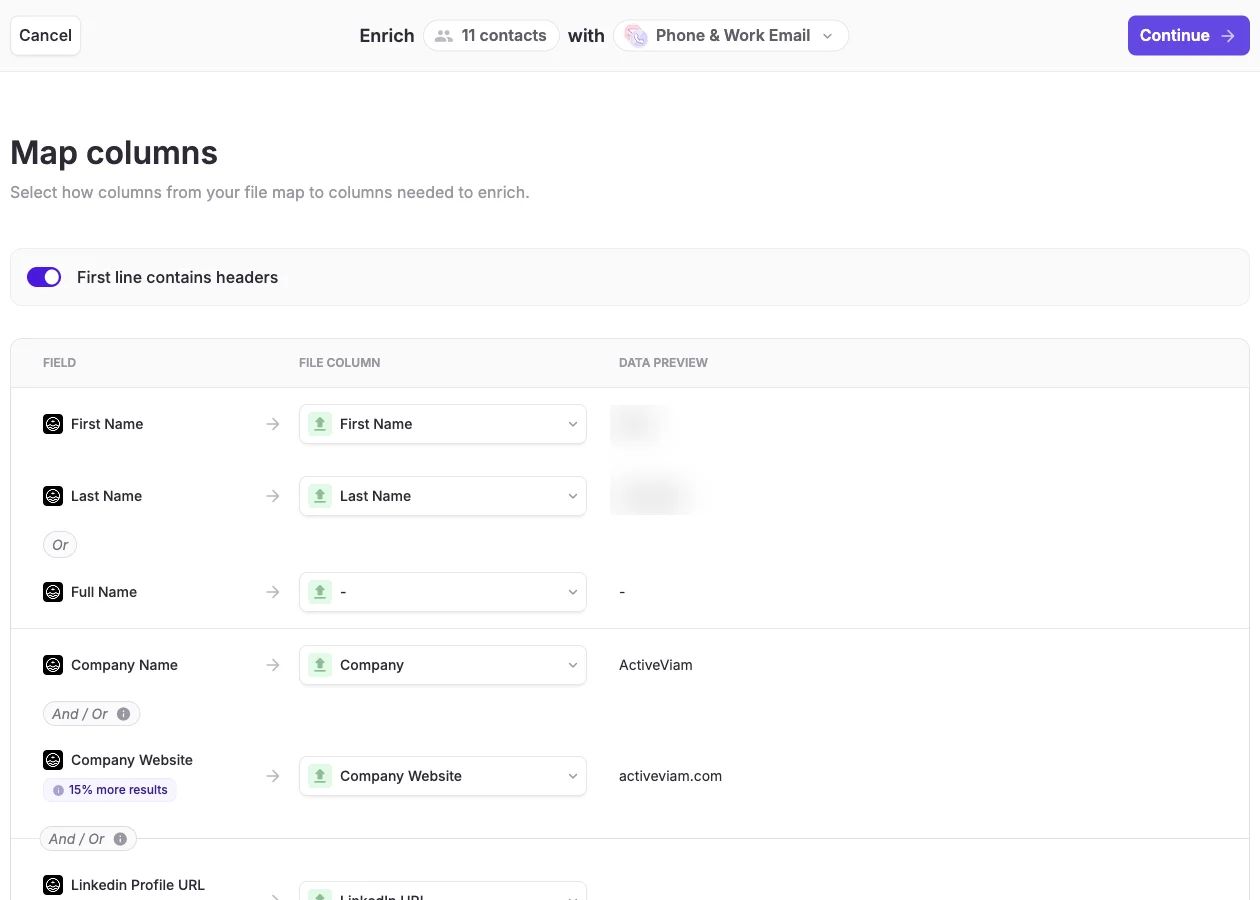
The mapping screen after a manual fix. The badges show how much a website or LinkedIn URL adds.
Step 4. Review the rows. The review screen splits contacts into All, Valid, Ignored and Invalid tabs. Click the X on any row you don't want, and fix anything flagged Invalid. Our exact duplicate row wasn't flagged here, which is why dedupe is your job.
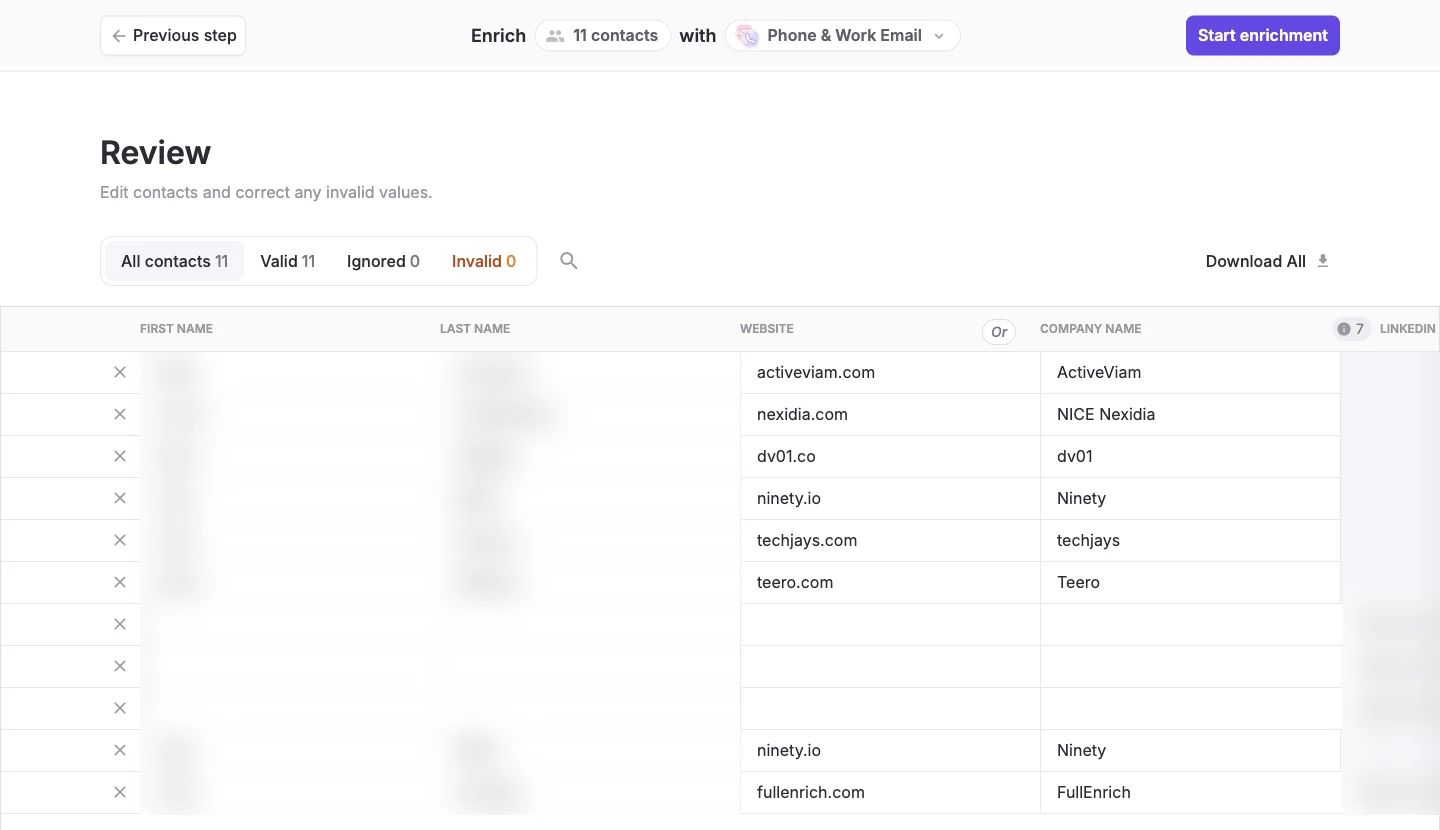
The review step. Ignored rows never run, and Invalid rows need a fix before they can.
Step 5. Start the enrichment. Each row goes through a waterfall enrichment across 20+ sources, one after another, until one returns verified data. The running screen says a job can take 10 to 20 minutes and that you'll get an email when it's done. You can close the tab.
Step 6. Download or push. Grab the file, or push to HubSpot. Before a push, you review every uncertain match and pick a destination list.
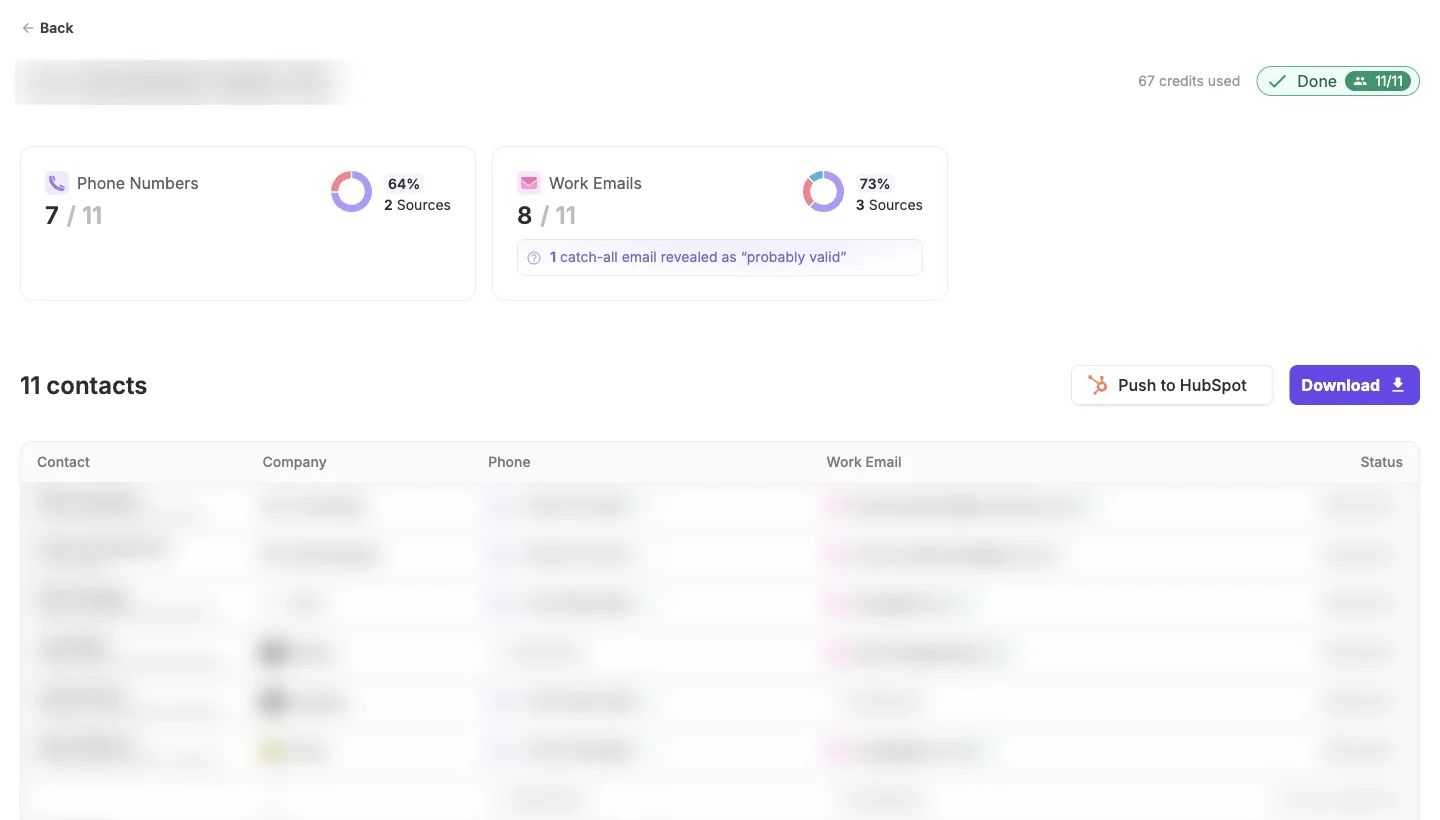
Results for our 11-row sample: found counts per field, credits used, and the two ways out.
Here's what that small sample returned. Treat it as a test file, too small to benchmark anything. The app found phones for 7 of 11 rows and work emails for 8 of 11. One catch-all email (on a domain that accepts every address) came back as "probably valid". The run used 67 credits and finished in under 3 minutes. Two rows came from our workspace history at 0 credits. That's why the run cost 67 credits, not the 78 that 7 phones and 8 emails would cost.
Larger files take longer. A workspace runs 100 contacts at a time and queues the rest, so a big list can run for hours. You'll still get the email. The 100-at-a-time limit applies per workspace. Run big batches in a separate workspace, and your reps' lookups won't queue behind them. Each workspace draws on its own credit pool, so the bulk workspace needs credits of its own.
What comes back in the enriched CSV, and what should you send?
Send Valid and Probably valid rows, hold the catch-alls, and drop the Invalid ones. FullEnrich adds its results as new columns at the far right of your original CSV. If your export has dozens of columns, scroll right before you assume they're missing. The email column is headed "Email (FullEnrich)".
Open the file the right way. Double-clicking a CSV lets Excel apply its default settings, and the columns can look jumbled. Import it in Google Sheets instead, or use File, then Open in Excel and pick comma as the delimiter.
Then sort by email status. This is where a result becomes a list you can send to. FullEnrich's email status guide gives an average bounce rate for each one.
- Valid: send. Average bounce rate 1-2%.
- Probably valid: usually send. Average bounce rate around 9%.
- Catch-all: hold. Average bounce rate 26-40%. Test a small slice first, or verify these separately.
- Invalid: never send. You're not charged for these, and FullEnrich keeps searching other sources before it shows one.
A catch-all email sits on a domain that accepts every address, so a standard check can't confirm the mailbox exists. That's where bounce risk concentrates: 26-40% on average, against 1-2% for Valid. Keep them in their own segment and watch the bounces.
One more thing. Enriched contacts are deleted 3 months after the run. Export what you need before then, because deleted contacts can't be recovered.
What does CSV enrichment cost per row?
In FullEnrich, CSV enrichment costs credits per field found: 1 credit for a work email, 10 for a mobile and 3 for a personal email. If nothing is found, the row costs 0. If the only number out there is a landline, you get it for free.
A few things you still pay for, per the credits guide and the duplicates guide:
- Catch-all work emails. They cost 1 credit, like Valid and Probably valid ones. That's the honest exception to "pay only for found data".
- Duplicate rows. FullEnrich doesn't dedupe inside a file, so expect each copy to run and use credits.
- Re-runs after 3 months. The contact is gone by then, so it counts as a new request.
Re-runs inside 3 months work the other way. Data you already found usually costs 0. So you can enrich emails today and add mobiles next month, paying only for the new phones.
Here's a worked example from our credit pricing page. Enrich 1,000 rows for work email and mobile. At an ~80% email find rate and an assumed 50-70% mobile find rate, that's 5,800-7,800 credits. At the 10K-credits monthly tier, that's roughly $289-$389 worth of credits. The tier costs $499 a month, about $0.05 per credit (October 2026), and unused credits roll over for 3 months. Emails only come to about $40 worth.
Now judge cost on the emails you'll actually send. Assume, for illustration, that 1 in 5 found emails is a catch-all you hold back. Your cost per sendable email rises from about 5 cents to about 6.2 cents. Same file, same credits, fewer usable rows. That's why the status sort matters as much as the price.
If you're not sure how your own file will match, test a slice before you commit. You get 50 free credits, no card needed: start a free trial.
How do CSV enrichment tools compare on limits and billing?
Upload limits range from 25 leads per launch (Kaspr's free plan) to 100,000 rows per file (Apollo, LeadMagic), and several tools don't publish what a no-match costs. Here are the documented rules, vendor by vendor.
Tool | Row limit per file | What you can upload | What a no-match costs |
|---|---|---|---|
FullEnrich | No published cap; runs 100 contacts at a time | CSV or XLSX; name plus company or website, or a LinkedIn URL (Sales Navigator included) | 0 credits (catch-all work emails cost 1) |
Apollo | 100,000 rows, 50 MB | CSV; name plus company URL or name, a LinkedIn URL, or an email | Not published |
Lusha | Up to 10,000 rows, 20 MB, by plan | CSV; LinkedIn URL, email, or full name plus company name | 0 credits |
Kaspr | 25 to 1,000 leads per launch, by plan | CSV with standard LinkedIn URLs, 3 columns max | 1 credit per item found; no-match rule not stated |
SalesQL | 1,000 to 50,000 rows, by plan | Name plus company domain or name, LinkedIn URL, or email | No-match rule not stated (1 credit per contact) |
LeadMagic | 100,000 rows on the standard plan | CSV with a header row, mapped to the fields each enrichment needs | 0 credits |
Clay | 50,000 rows per table | CSV import into a table | 0 credits when an enrichment returns nothing |
Tomba | Up to 25,000 rows per job | Names, emails, domains or LinkedIn URLs | 0 credits |
Sources: each vendor's documentation and product pages, October 2026.
A table like this can't show coverage. Coverage depends on how many sources check each row. That's why we run a waterfall across 20+ sources instead of one database. For a wider view, see our roundup of data enrichment tools.
Your spreadsheet app has limits too. The CSV format itself sets none, but Excel stops at 1,048,576 rows and Google Sheets stops at 20 million cells.
Can you enrich a CSV without the upload screen?
Yes, you can enrich a CSV without the upload screen through Claude, a Google Sheets template, or the FullEnrich API and CLI, depending on where your list lives.
- Claude. Connect the FullEnrich MCP, install the CSV skill, then drop the file into the chat to enrich a CSV in Claude. It shows the first 5 rows to confirm the mapping, estimates the credit cost, and only runs after you say go. It fills empty cells and never overwrites an email you already have. It runs on the FullEnrich MCP server.
- Google Sheets. If your list grows row by row, the Google Sheets template is a Zapier Zap that enriches each new row and writes the email and phone back to it.
- API or CLI. For scripted runs, the API takes 100 contacts per call. Coding agents can search and enrich contacts from the terminal through the FullEnrich CLI.
The chat route suits files you want to check as you go. The upload screen still suits a big list you want to review row by row.
FAQ
Will a 2-million-row CSV work for enrichment?
Not in most tools: published upload caps stop well below 2 million rows. Among the tools we compared, the highest is 100,000 rows per file. The CSV format has no row limit. Excel opens at most 1,048,576 rows. Google Sheets stops at 20 million cells, so 2 million rows with more than 10 columns won't fit. Split the list into chunks and run them one after another.
How long does a CSV enrichment take?
A small file finishes in minutes, and a large one can take hours. Each contact takes 40 seconds to 2 minutes, up to 3 for catch-all checks, and a workspace runs 100 at a time. Our 11-row sample was done in under 3 minutes. For big files, close the tab and wait for the email.
Do you pay when no email or phone is found?
No, a row with no result costs 0 credits in FullEnrich. Invalid emails and landlines are free too. The exception is catch-all work emails, which cost 1 credit even though they bounce more often.
Can you add phone numbers to a file you already enriched?
Yes, you can add phone numbers to an enriched file by re-uploading it with identical identifiers and choosing Mobile. Within 3 months, data you already found usually costs 0, so you only pay for the new phones. After 3 months the contacts are deleted and the run counts as new.
Why does my enriched CSV look broken in Excel?
Excel applies its default settings when you double-click a CSV, so columns can look jumbled. Open the file in Google Sheets instead. Or use File, then Open in Excel, pick the text file type and set the delimiter to comma.
What's the shortest path from spreadsheet to sendable list?
Getting from spreadsheet to sendable list takes three choices: what goes in each row, what you pay for, and what you send. Each row needs a name plus company or website, or a LinkedIn URL, with duplicates removed. Keep Excel away from your phone columns and delimiters. Every row then runs across 20+ sources, and you pay only for what's found, catch-alls included. Send the Valid rows first, then push to HubSpot or download.
If you've got a spreadsheet of contacts you can't reach yet, run a slice of it today. Try FullEnrich with 50 free credits, no card needed.